
Create a PayPal app, connect it to web2wave, create a subscription plan, and verify that it appears in your paywall editor.
Integration guide
Part 1 – Create a Paypal Developer app and link API keys to web2wave
1: Log in to your PayPal Business account at paypal.com. In the top navigation, click Developer. This takes you to the PayPal Developer Dashboard at developer.paypal.com. In the Developer Dashboard, click Apps & Credentials in the top menu. Make sure the toggle in the upper-right corner is set to Sandbox for testing, or Live when you are ready to go live.
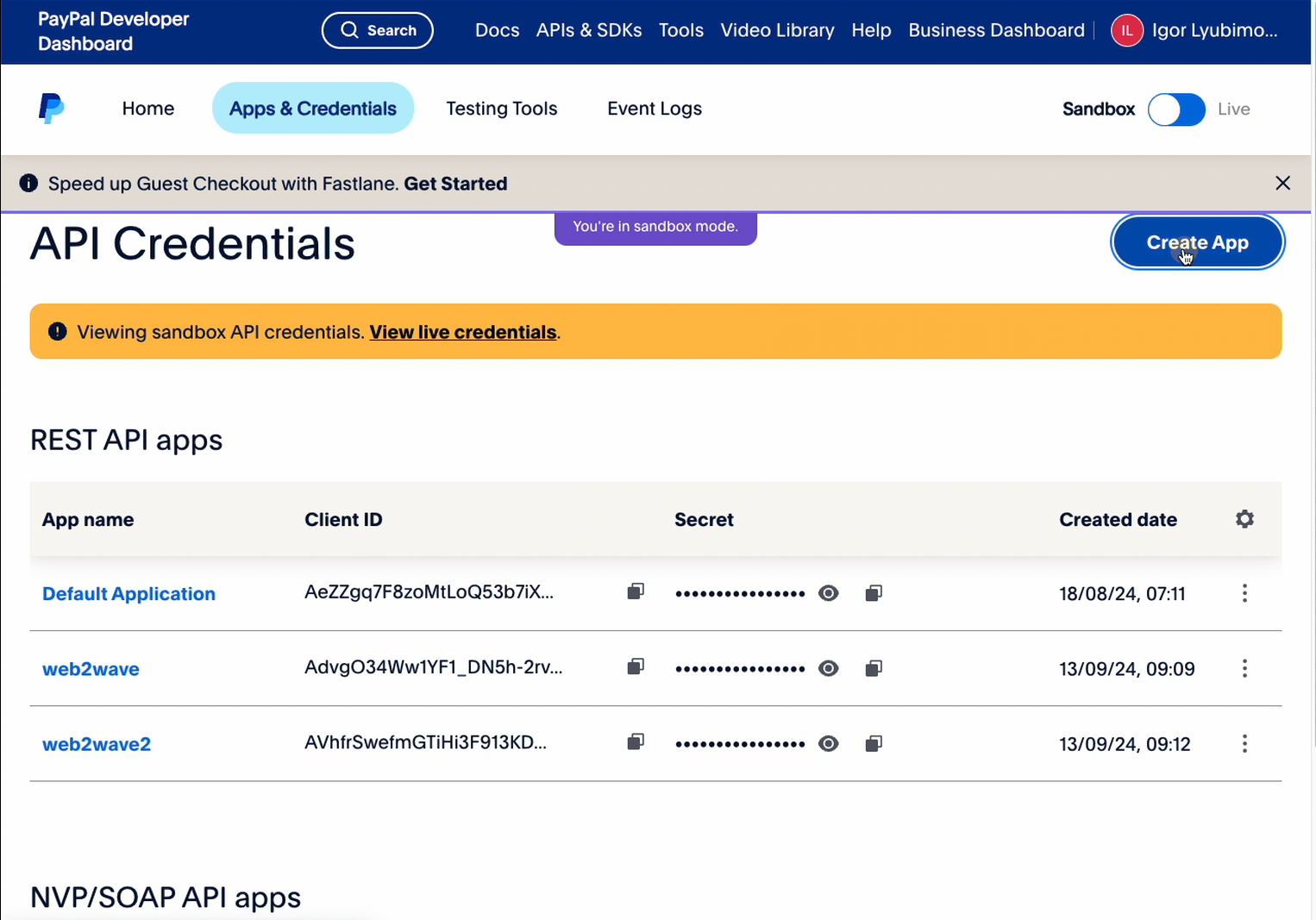
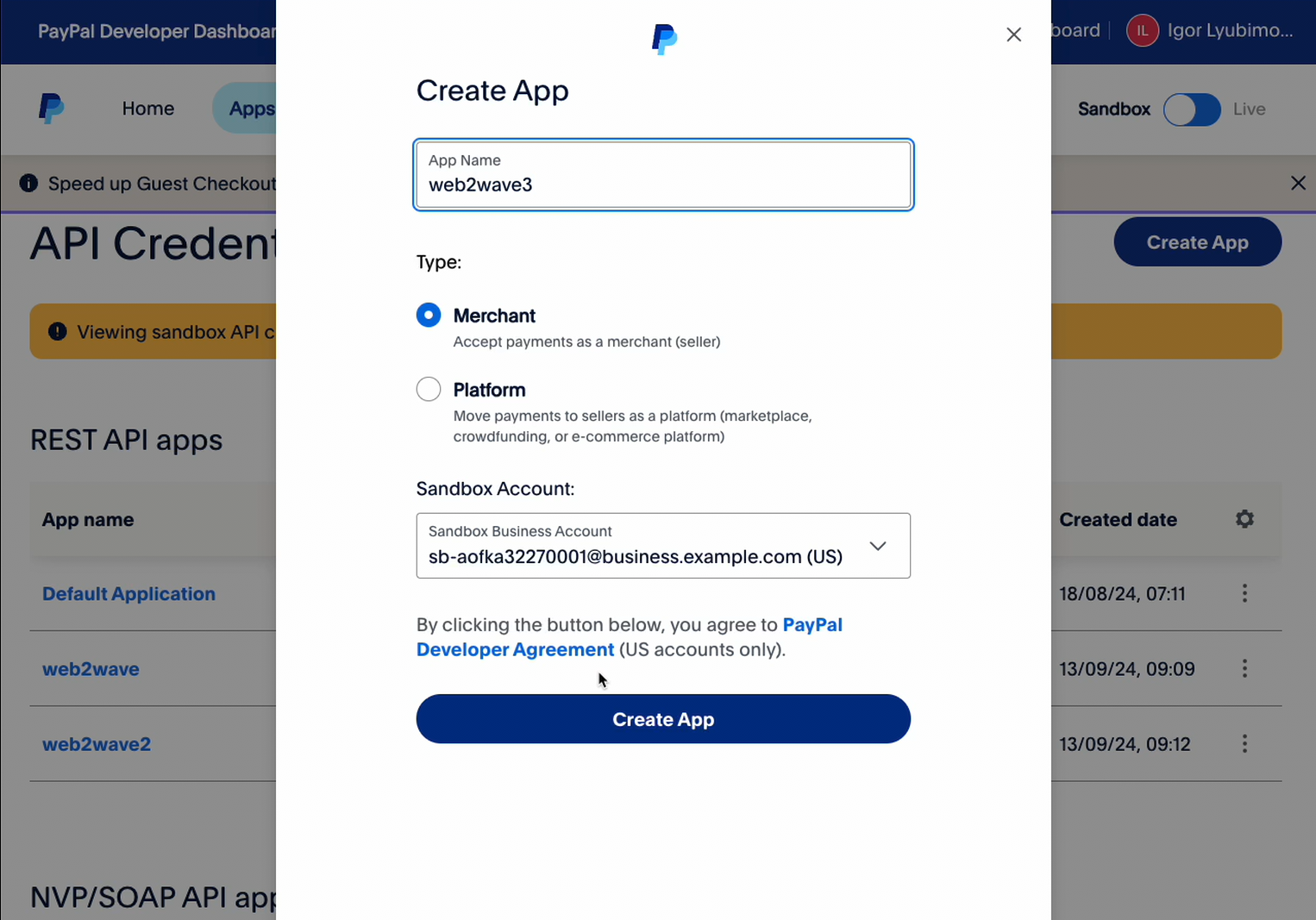
2: On the Apps & Credentials page, click the Create App button in the upper-right area of the REST API apps section. A modal dialog will appear. Fill in the App Name and click the Create App button at the bottom of the modal. PayPal will generate a new app and redirect you to its credential page.
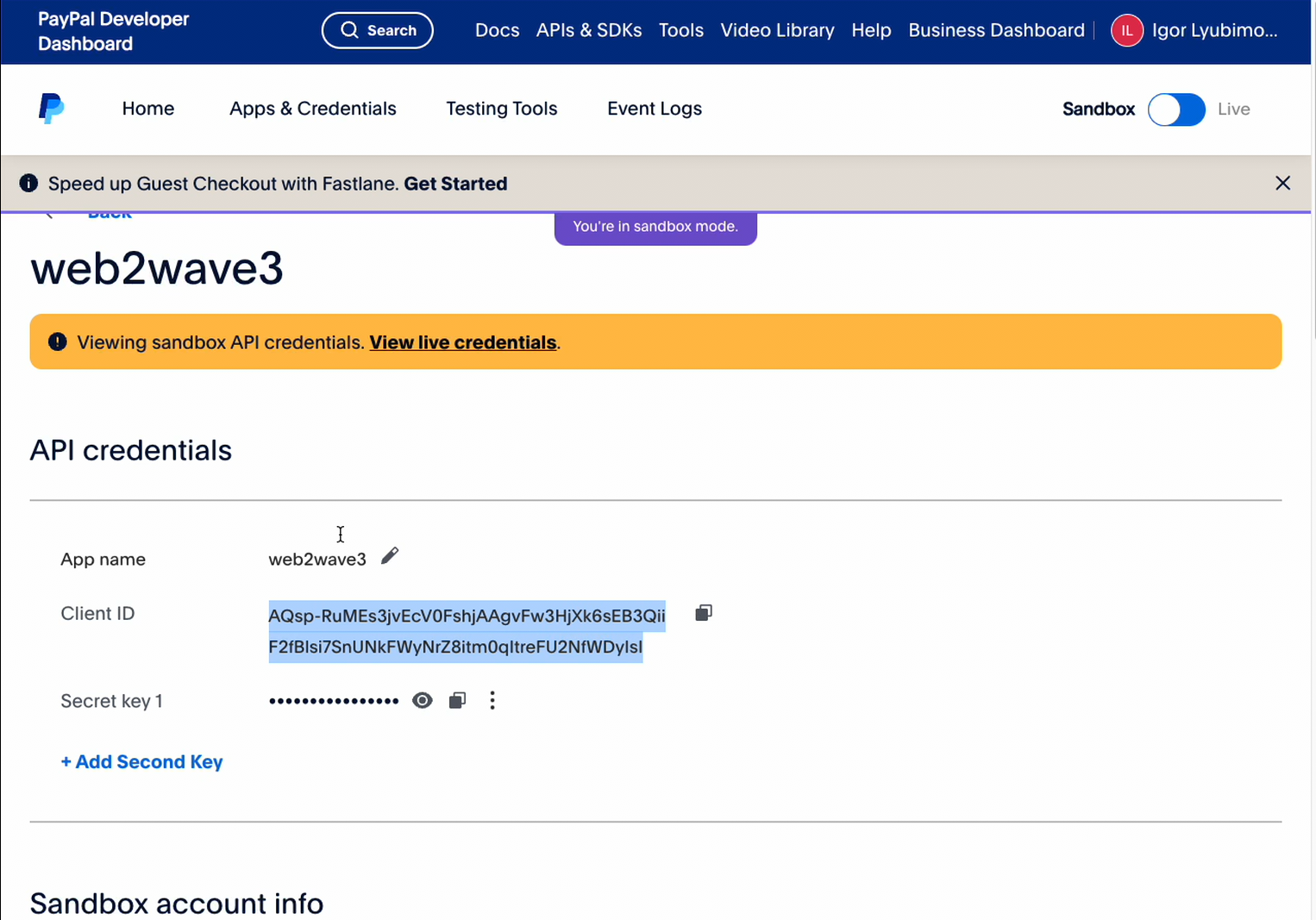
3: After the app is created, you are taken to the app detail page. You will see your Client ID and Secret Key. Do not close this page yet.
4: On the web2wave platform, click Projects in the left sidebar. You will see a list of your projects. Find the project you want to connect PayPal to and click the pencil icon on the right side of the row. This opens the Update project page.
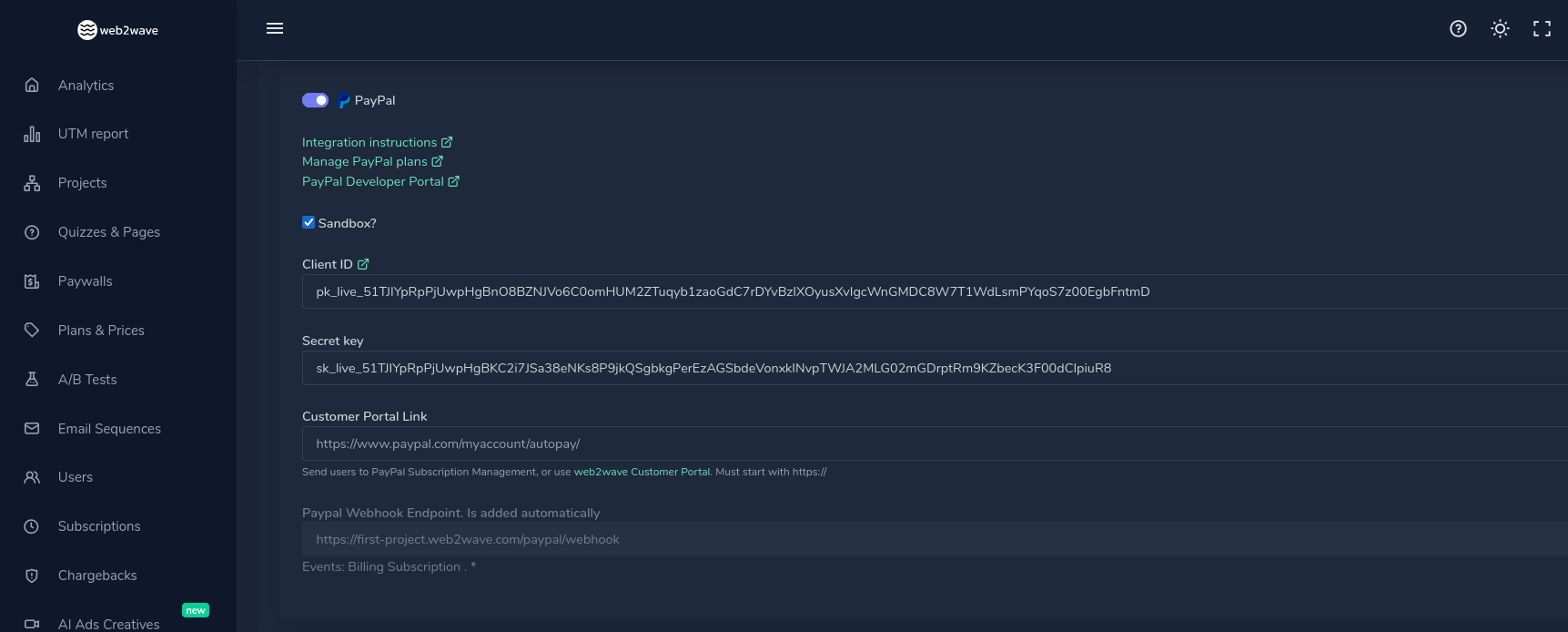
5: On the Update project page, go to Payments → Paypal. Click the Paypal tab.
Check the Sandbox checkbox to link your web2wave project with the Paypal sandbox account. Uncheck it for a live version.
6: Click into the Client ID field and paste the Client ID from the PayPal Developer Dashboard in Step 3. Do the same with the Secret Key field. Click the Submit button to save your settings.
Part 2 – Create a subscription plan in Paypal
web2wave uses PayPal Billing Plans to process recurring payments. You must create at least one plan in PayPal before it can be linked to a web2wave paywall.
7: Go to paypal.com/billing/plans to open the Manage Subscriptions section. You can also reach it via the web2wave PayPal tab by clicking the Manage PayPal plans link. On the page, click the Create Plan button in the upper-right corner if you do not have any, or verify the already existing ones.
8: Do not forget to set up all fields during the creation of a new Paypal plan:
- Currency: Select your preferred currency, for example
USD. - Setup fee (optional): Check Charge a one-time setup fee? if you want to add a one-time charge on top of the recurring fee.
- Trial period (optional): Check Offer a trial period? to add a discounted or free trial before the regular billing starts.
- Subscription period: Choose Unlimited billing cycles or Limited billing cycles. Set the price, billing frequency, and interval, for example
$5.99 every 1 week. - Tax calculation: Configure tax settings if applicable.
After filling in all pricing details, click Next to proceed to the review page.
9: PayPal will show a summary of your plan, including setup fee, subscription period, price, billing cycle, number of billing cycles, and tax. Review the details carefully. Once satisfied, click Turn Plan On or Save Draft if you want to activate it later. PayPal will process the plan creation and redirect you to the Subscription plans listing page, where your new plan will appear.
10: In the web2wave sidebar, click Plans & Prices. The Subscription plans page lists all plans that have been imported or linked. Your newly created PayPal plan should appear here automatically.
If the plan does not appear, click Import Plans & Prices to manually sync plans from PayPal..
11: After that, check whether the prices have been exported in the paywall editor correctly. Open your paywall editor and try to find your imported product in the Plans field. If you can see it in the dropdown menu, the integration is complete.
Troubleshooting
General Integration & Pricing
-
Which web2wave plans support PayPal?
PayPal integration is available for users on the Pro plan and Advanced plan. It is not available on the Basic or Starter tiers. -
Can we use PayPal for the Upsells?
Yes. If you want to add a non-recurring product (Lifetime), create it in the web2wave dashboard under Plans & Prices => Create new price => PayPal. -
What is the difference between a standalone PayPal block and PayPal inside Stripe?
If you add PayPal as a separate payment system, it will appear as its own selectable option, like a standalone PayPal button. If you only enable PayPal within your Stripe dashboard, it will appear only as an option inside the Stripe checkout form and cannot be pulled out as a separate block. -
Does adding PayPal improve sales?
According to support insights, adding PayPal for the US market can provide a conversion uplift of 10–15%, with roughly one-third of users choosing it over other methods.
Subscriptions & One-Time Purchases
-
Can I set up introductory offers or trials with PayPal?
Yes. Unlike Paddle, where offers are managed in web2wave, PayPal trials and discounts must be configured directly within your PayPal account and then imported into the web2wave project. -
How do I create a one-time "Lifetime" purchase for PayPal?
PayPal’s system handles one-time charges differently than Stripe and does not generate a "Price ID" for them.
Workaround: Create a "fake" subscription in PayPal with a very long duration, for example 99 years, so it can be imported as a product and displayed on your paywall. -
Can users manage their PayPal subscriptions via the web2wave Portal?
Yes, users can unsubscribe via the web2wave Manage Subscription page, which syncs the status with PayPal.
Upsells & Technical Limitations
-
Do 1-click upsells work with PayPal?
Currently, 1-click upsells are not natively supported for PayPal in the same way they are for Stripe. The team is actively working on adding this functionality.
Current solution: If a user pays via PayPal on the main paywall, many creators choose to skip the upsell page and send the user directly to the success or download page to avoid a clunky second login/payment process. -
Can I use PayPal with the Primer orchestration tool?
Yes, PayPal is supported via Primer, but support notes that you cannot integrate Solidgate into Primer because they are competing orchestration tools. -
Can I use a "Double Purchase" prevention for PayPal?
Yes, in "Plans & Prices", edit your price and define "Double purchase behaviour".
Technical Support
Q: The PayPal button is not appearing on my paywall.
- What it means: PayPal is either not enabled in your Project Settings or the price has not been imported.
- Resolution: Verify that your PayPal account is connected and that you have imported the specific PayPal prices in the Plans & Prices section.
Q: PayPal buttons are giving an error message during checkout.
- What it means: This can be caused by your PayPal account being restricted or blocked by PayPal’s security filters.
- Resolution: Check your PayPal Developer Dashboard for account alerts. If the account is clear, try re-linking the API keys in web2wave.
Q: I can't see the "Stripe Express" PayPal button.
- What it means: The Stripe Express button follows specific Stripe rules for displaying PayPal.
- Resolution: Ensure PayPal is active in your Stripe dashboard under Payment Methods. In web2wave, you may need to enable PayPal in the Stripe ApplePay/Express Button settings but disable it in the general Wallets section to force the correct display.