Configure custom domain, default paywall, theme, legal data, robots.txt, and team access.
The Project Settings screen is where you configure everything that applies to the whole project: domain, default paywall, theme, legal data, robots.txt, and team members.
If you want to review Email settings, please navigate here.
Video walkthrough
Custom domain (PRO plan)
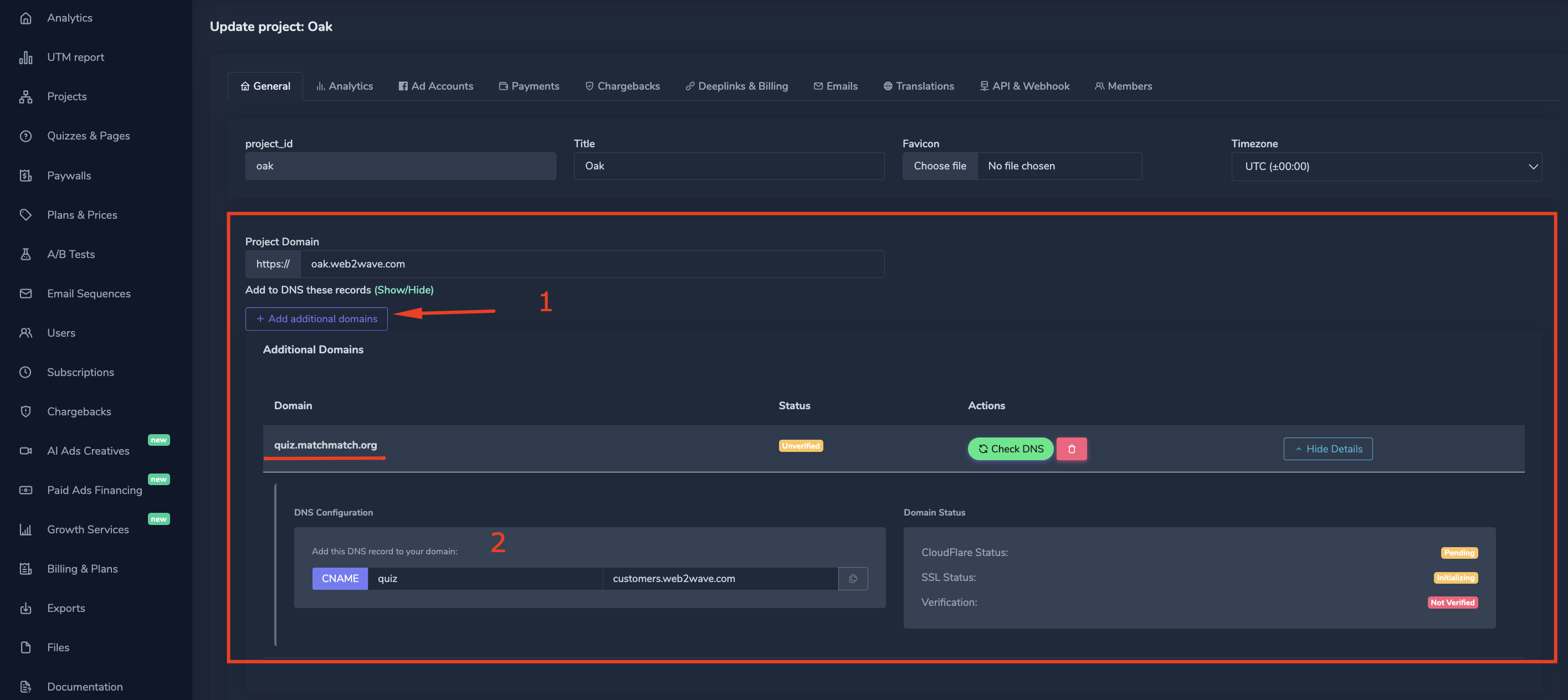
To add your custom domain to web2wave:
- Use a subdomain. Second-level domains (e.g.
yourdomain.com) are not supported directly — you must use a subdomain such asquiz.yourdomain.com. - Configure a CNAME record in your DNS provider (Cloudflare, Namecheap, GoDaddy, etc.):
- Type: CNAME
- Host (Name): quiz
- Value (Target): customers.web2wave.com
- Wait for propagation. DNS changes can take up to a few hours to propagate globally. You can monitor the status at dnschecker.org.
Note: Don't forget to add the new domain to the verified domains list in your payment system (e.g. Stripe, Solidgate).
Need more than one domain? On the Advanced plan you can connect extra domains to the same project with the Add additional domains button in this section — see Additional custom domains.
Troubleshooting
Q: When using "Check CNAME record" I get "custom hostname does not CNAME to this zone.", and the page returns
ERR_SSL_VERSION_OR_CIPHER_MISMATCH.A: Reach out to the web2wave team for assistance.
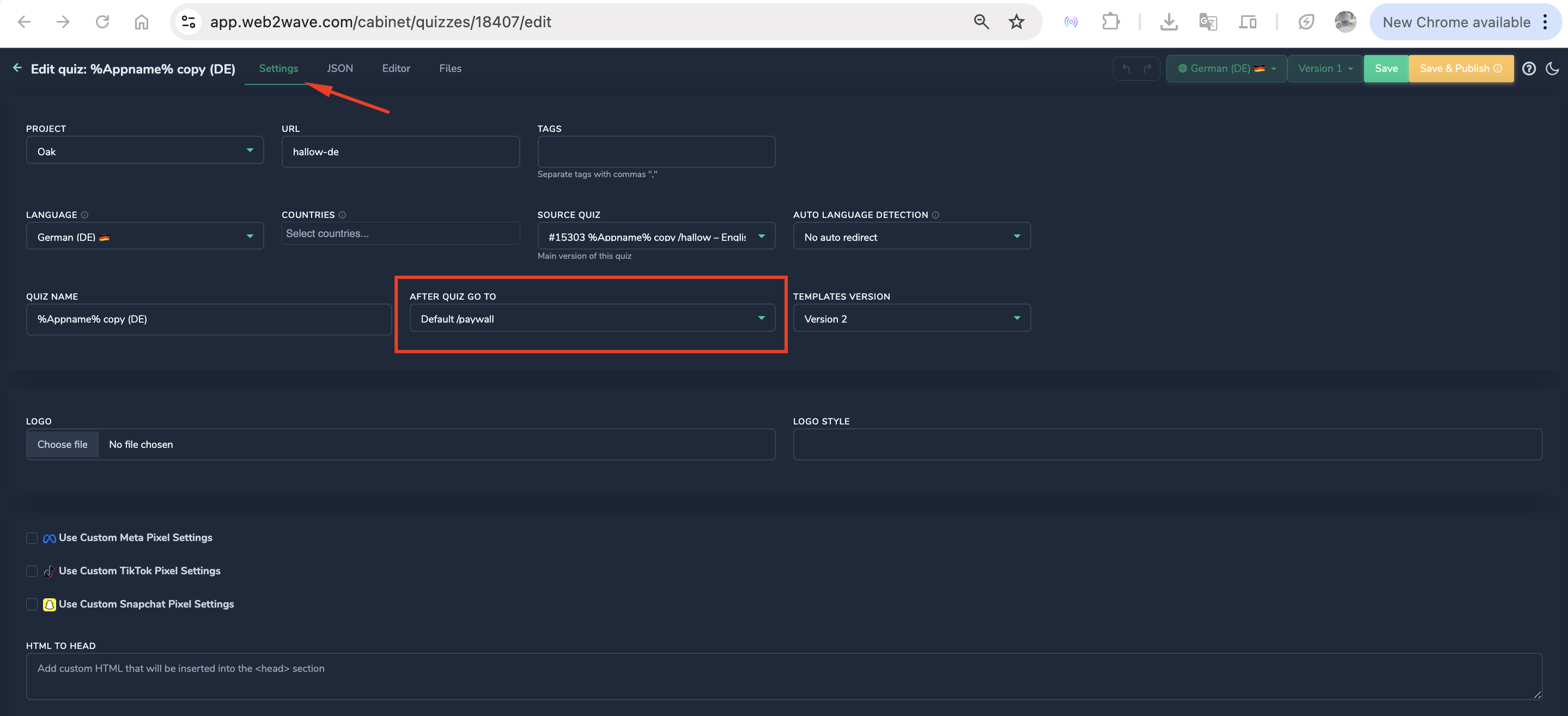
Default paywall
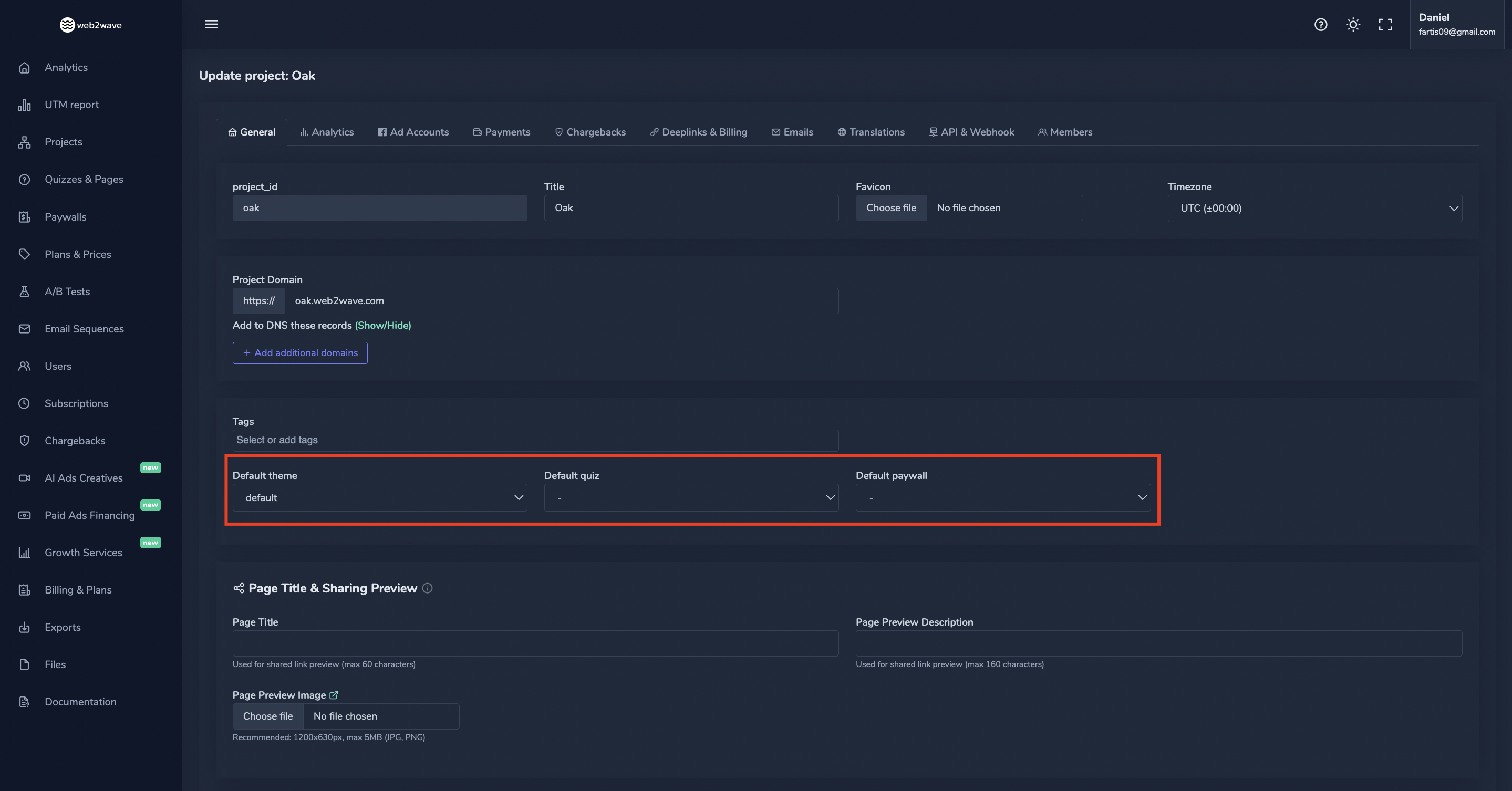
Once you designate a new default paywall, the system automatically redirects all existing and future quizzes to this new selection.
Default theme
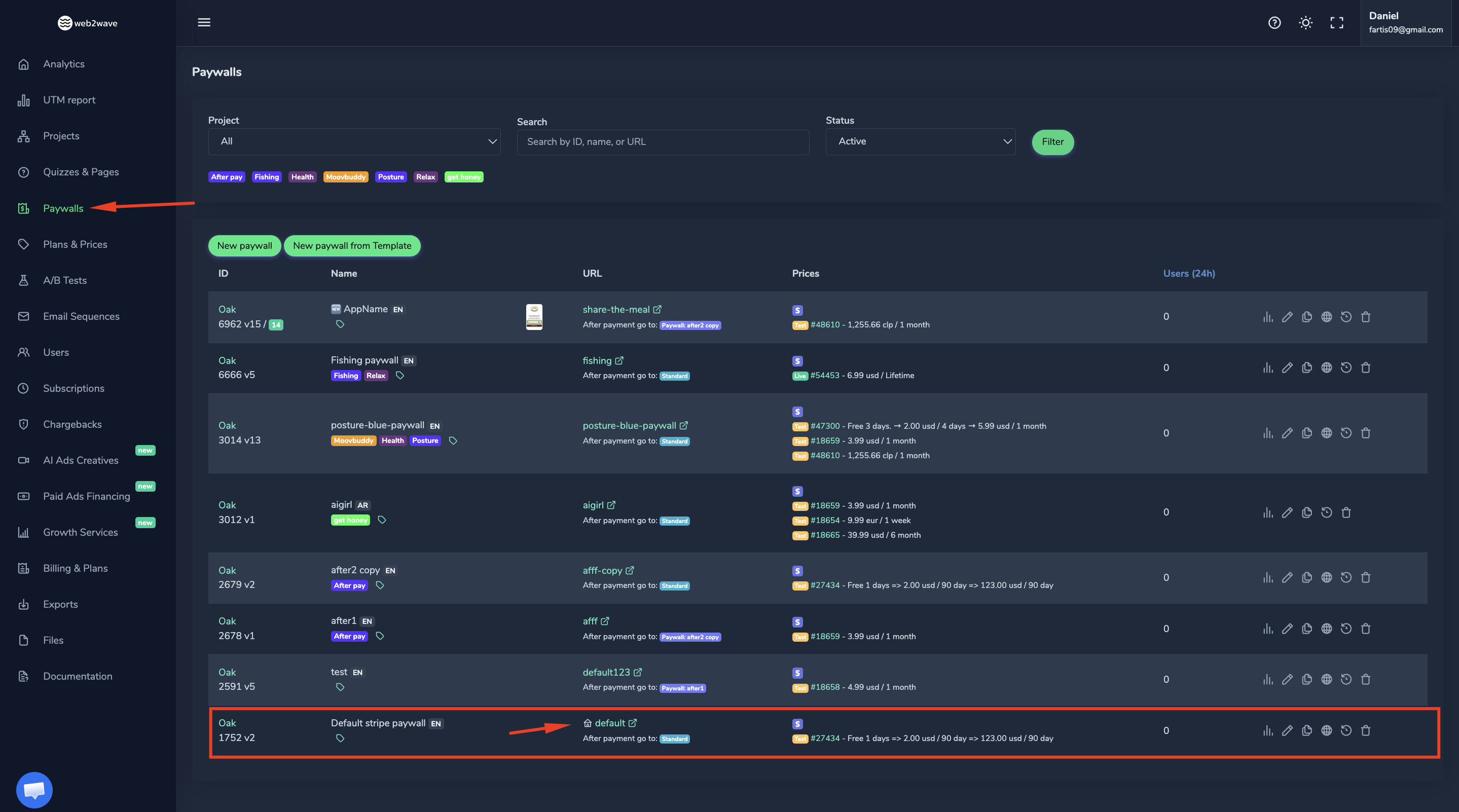
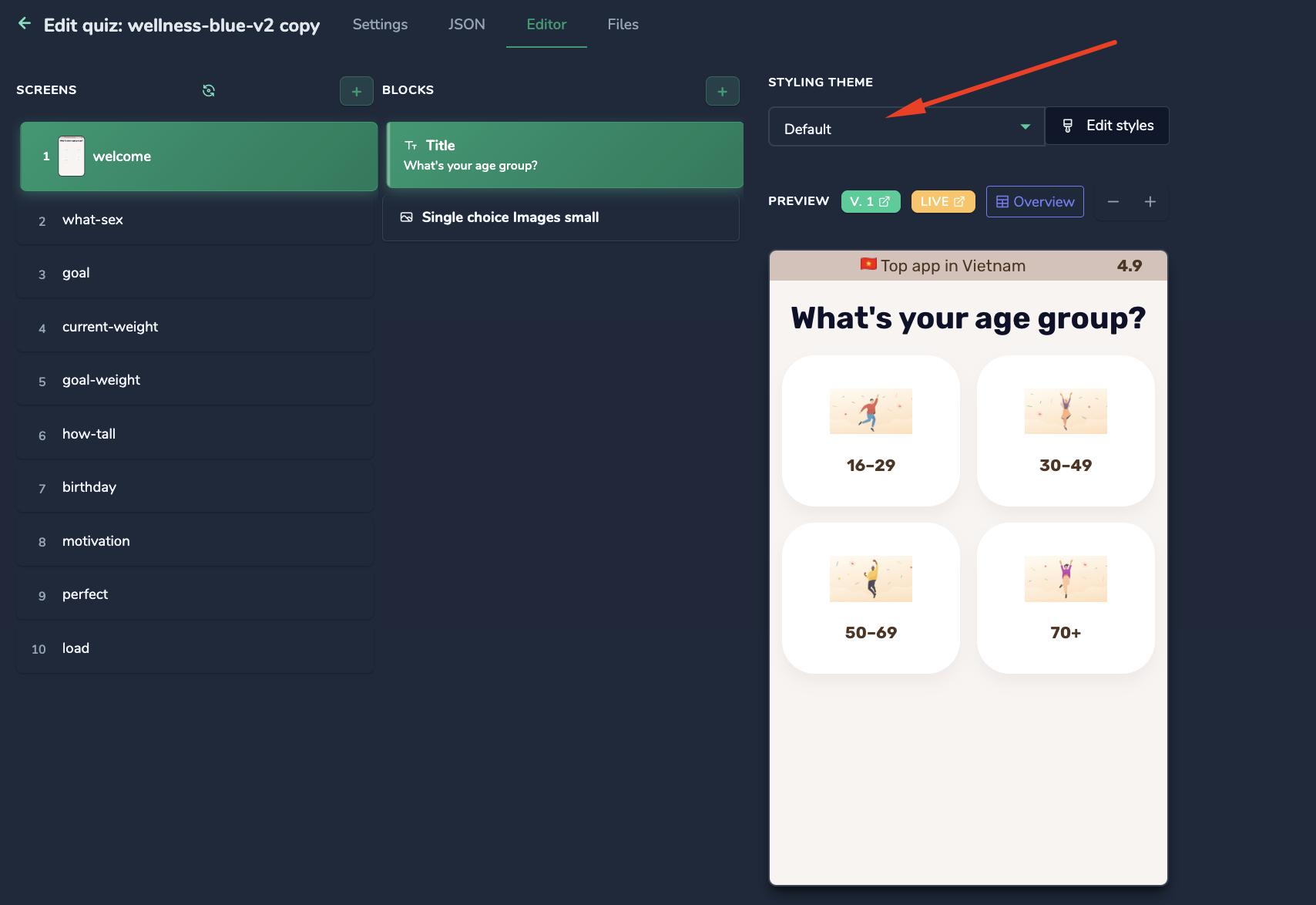
By default, every new quiz is assigned the "Default" styling theme. This theme acts as the master template for your project's look.
Page title and sharing preview
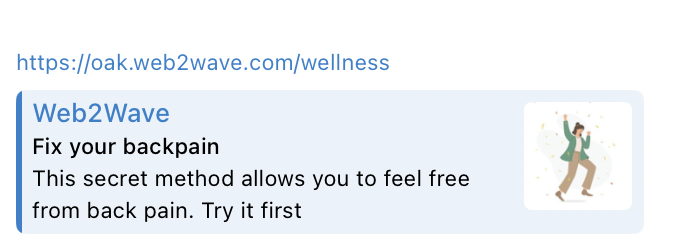
The Page Title & Sharing Preview section lets you customize how your quiz looks when shared on social media, messaging apps (WhatsApp, Telegram, Slack), and how it appears in browser tabs.

Legal data for Terms of Use and Privacy Policy
In Project Settings you'll find fields for your company's official details. Filling these out will automatically populate the standard Privacy Policy, Terms of Use and Refund Policy pages for your project.
Required fields:
- Company name — your registered business name
- Address — your official business location
- Legal entity country — the jurisdiction under which your company operates
- Store IDs — Google Play / App Store identifiers, if applicable

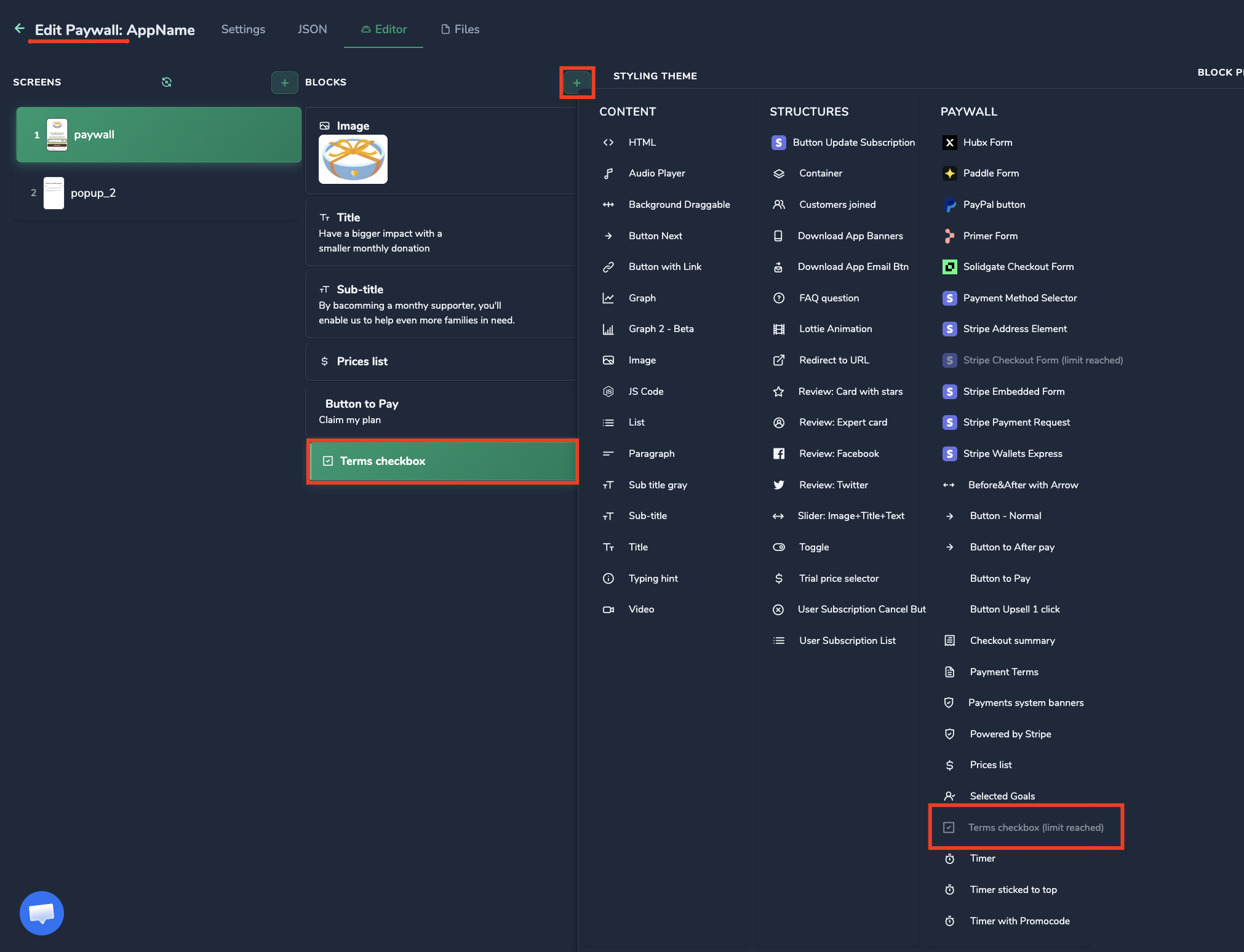
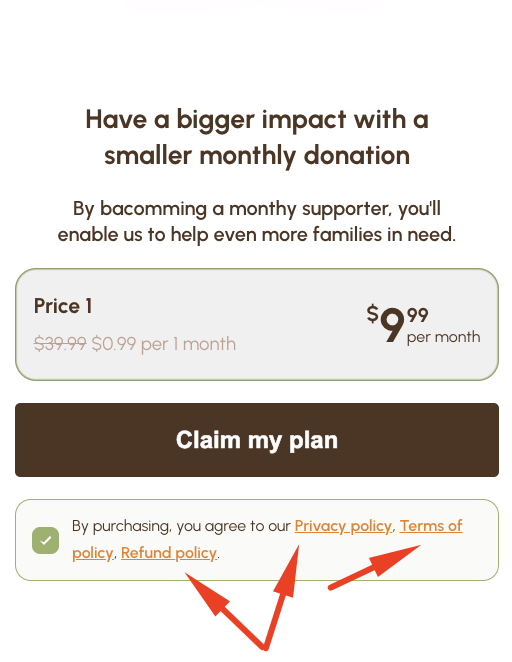
If the standard templates don't meet your specific legal requirements, you can host your own custom legal text. Create a new empty quiz and assign it one of the reserved URLs (/privacy-policy, /terms-of-use, /refund-policy) — it will replace the corresponding default page.
Customer portal link
In Project → General, Customer portal link points to your subscription management quiz. Use USER_ID in the URL so users are authorized when they open the portal.
Users can sign in without knowing their user_id via /manage-account on your project domain (email magic link). See Customer portal setup for the full flow.
Robots.txt

The robots.txt editor controls how search engine crawlers (Googlebot etc.) interact with your project — essential for SEO and for keeping private areas out of search results.
You can specify which paths to hide from search engines using the Disallow directive (e.g. /admin, /cabinet).
If you leave this field empty, the system uses a default robots.txt.
Team members and access levels
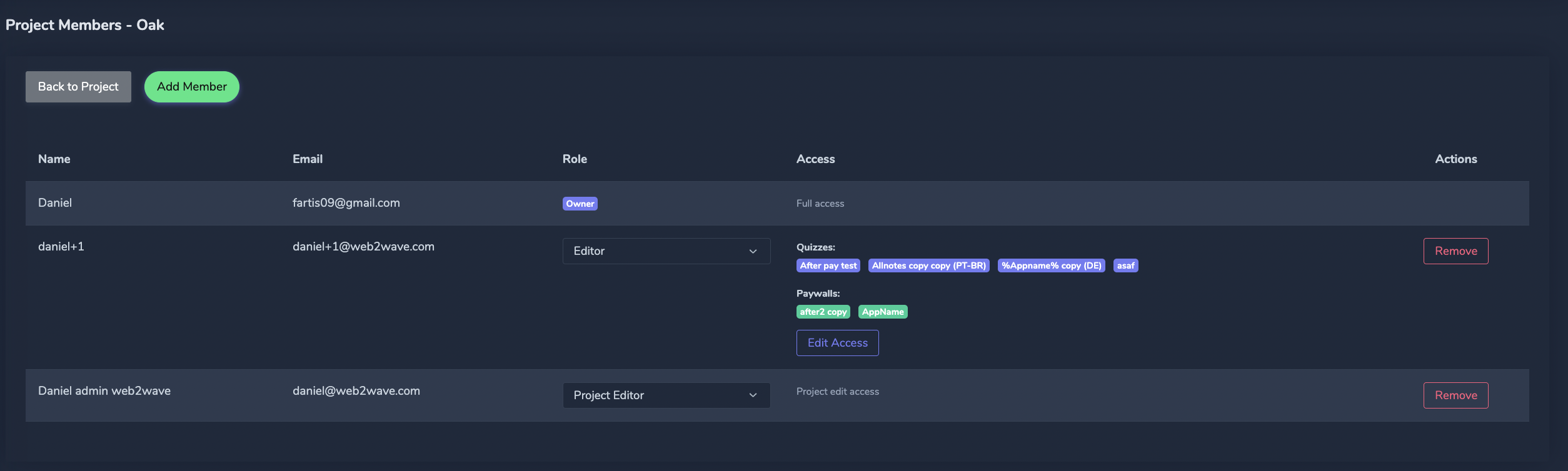
Add people from your team with different roles in the project's Members tab (Manage Members). Adding members requires the Advanced plan.
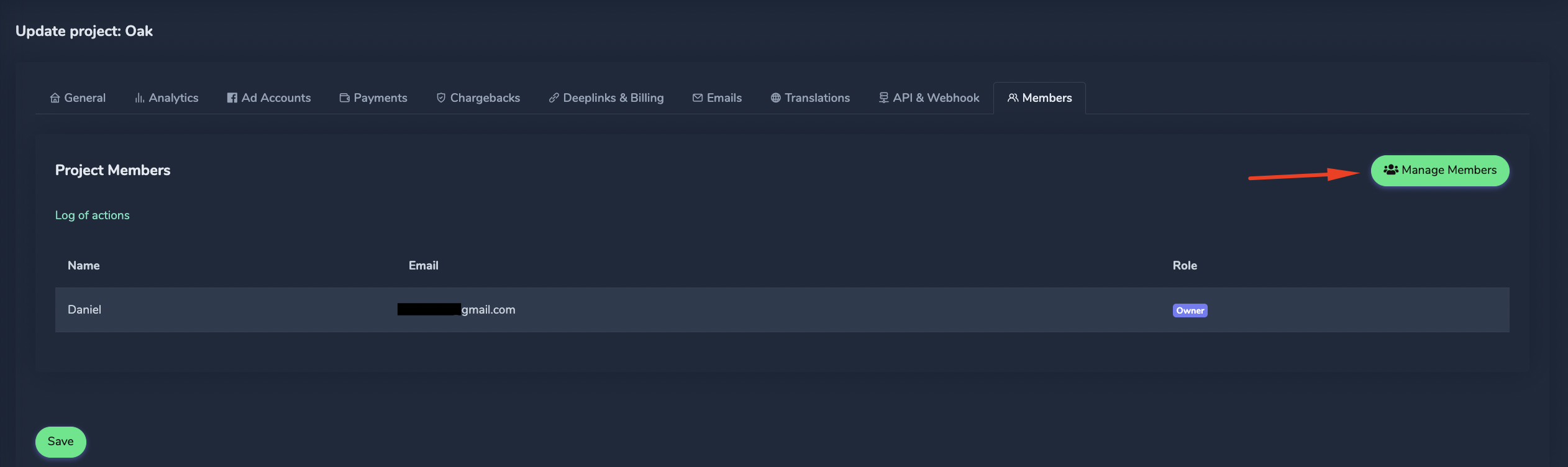
- Analyst — Analytics, UTM reports, Users & Subscription exports, experiment results; quizzes and paywalls read-only.
- Editor — quizzes, paywalls, plans and prices, experiments — all of them or only specific ones.
- Project Editor — can change project settings.
- Administrator — full access to the project, including members.
The project creator keeps the Owner badge and can't be removed. For the invite flow, the emailed credentials, and per-quiz access, see Project members.