
External email integrations (Mailchimp, SendPulse, HubSpot, etc.)
Instead of sending sequences from web2wave, you can sync leads and customers to external email platforms and run campaigns there.
Supported providers include:







Configuration
(Example: SendPulse), this is applicable for all email integrations:
-
Go to Project settings → Emails → Integrations.
-
Select SendPulse.
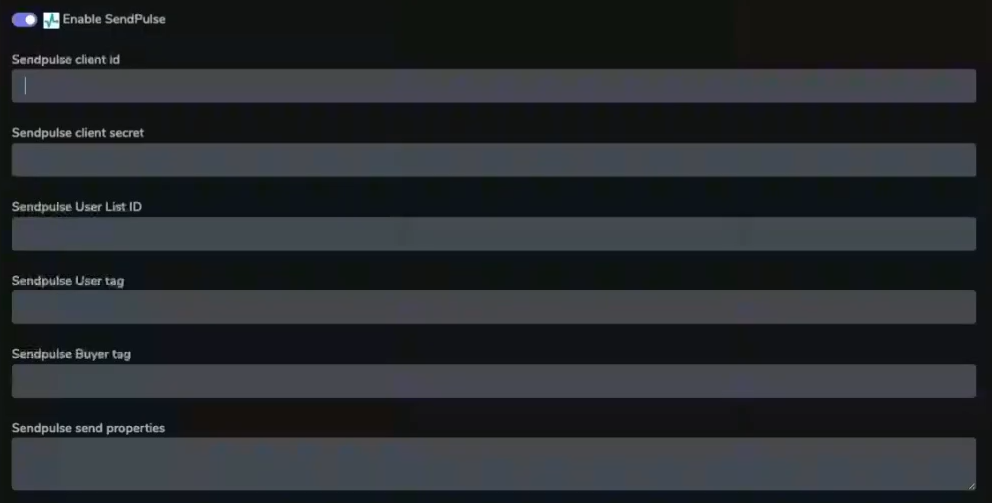
Enabling SendPulse
-
Provide:
-
Sendpulse client idfrom the ID field at SendPulse Account settings - API link -
Sendpulse client secretfrom the Secret field at SendPulse Account settings - API.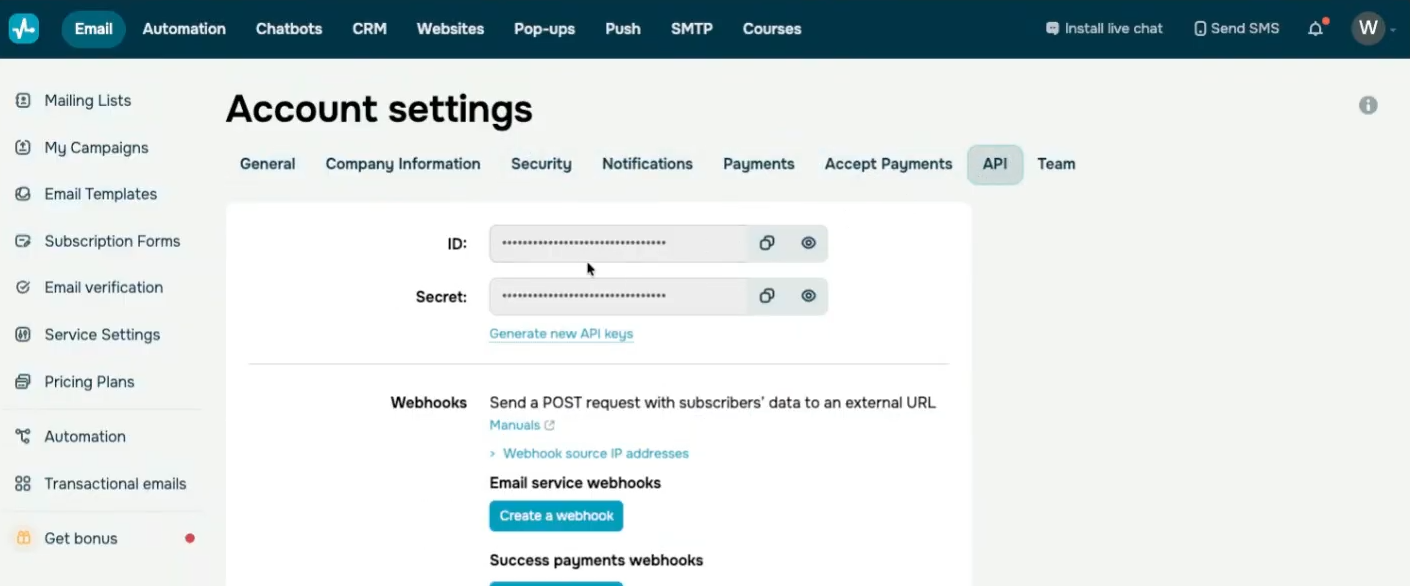
SendPulse dashboard account settings illustration
-
Sendpulse User List ID- list where web2wave should add users. Mailings Lists tab. Direct link to SendPulse.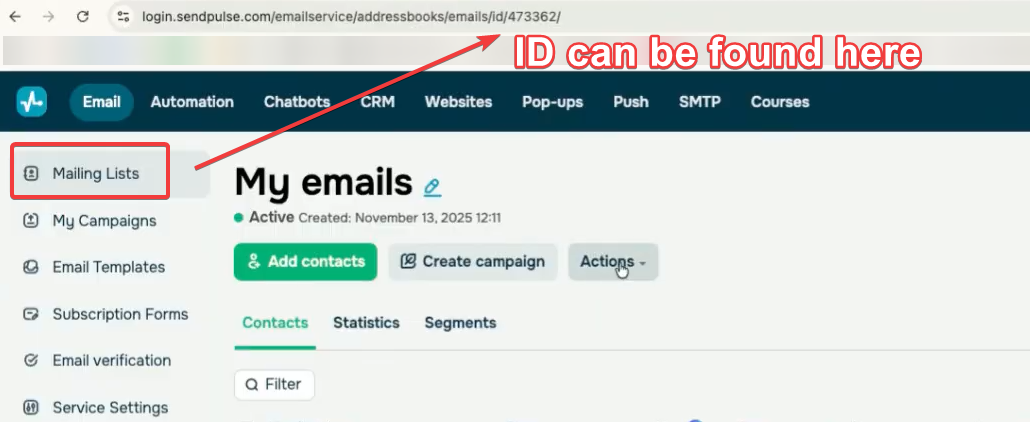
How to retrieve the list ID
-
-
Optionally configure:
- Sendpulse User tag and Sendpulse Buyer tag to apply.
- Sendpulse send properties - quiz answers or user properties to send as custom fields (e.g.
last_quiz_id,utm_source,utm_campaign,gender).
Mailchimp integration
-
Setup Mailchimp guide
Tags should be added in Mailchimp https://mailchimp.com/help/create-add-remove-tags/
-
In web2wave Project settings → Email:
- Mailchimp User Tag:
- User tags are labels you can use to categorize or group contacts in your audience.
- You can define or find existing tags under Audience > All contacts > select a contact > Tags.
- Mailchimp Buyer Tag:
- Similar to the User Tag, this is a custom tag used to identify "buyers" specifically.
- Add or find it in the same way as above.
- Mailchimp Send Properties:
- This field is typically used to define properties or custom data you want to send to Mailchimp for your contacts.
- These properties depend on how you configure your integration or workflow. For example, they might include custom fields like purchase history, preferences, or signup source.
Behavior:
- When a user leaves an email or purchases, web2wave creates or updates a contact in the external system.
- If the custom field does not exist yet, most providers create it automatically on first write.
Reteno integration
Use Reteno integration when you need both:
- Contact sync (email + custom fields) from web2wave to Reteno.
- Optional event sync for subscription lifecycle and registration events.
Configuration
In Project settings → Emails → Integrations → Reteno:
- Enable Reteno.
- Fill Reteno API Key.
- (Optional) Fill segment IDs:
- Every user Segment ID - segment for all synced users.
- Buyer Segment ID - segment for buyers.
- (Optional) Enable Send Events to Reteno.
- Configure Send user properties.
- (Optional) Send Web2Wave user ID as Reteno externalCustomerId — enabled by default.
Send Web2Wave user ID as externalCustomerId
When enabled (default), web2wave sends externalCustomerId = user_id on contact sync and in event payloads.
When disabled, web2wave does not send externalCustomerId. Contacts and events are matched by email only. Use this when your backend assigns the correct Reteno externalCustomerId after purchase (for example your backend user ID differs from web2wave user_id).
Send user properties format
Use one property per line:
property_namesource_property=TARGET_PROPERTY
Examples:
amplitude_device_id=EXTERNAL_ID
user_country_code=COUNTRY
age=AGE
gender=GENDER
last_quiz_id=COHORT
Notes:
- Do not use commas.
- Keep each mapping on a separate line.
- If the source property is missing for a user, it is skipped.
- Do not map to
emailorEMAIL— web2wave adds email automatically. - Do not map to
externalCustomerId— web2wave sets it when the toggle above is enabled. - Do not use two target names for the same field (for example
oneLinkUrlandone_link_url, orEMAILandemail). Reteno treats them as duplicates and rejects the request.
Contact identity and system fields
When syncing a contact to Reteno, web2wave uses:
- Email as channel (
channels). externalCustomerId= web2waveuser_id— only when “Send Web2Wave user ID as Reteno externalCustomerId” is enabled.
web2wave also sends system fields (when available), including:
languageCode(from user language properties),timezone/timeZone(normalized to TZ database format likeEurope/Kyiv),addressobject (town,postcode,countryCode) from user properties.
Events sent to Reteno
If Send Events to Reteno is enabled, web2wave sends:
RegistrationInWebCompleteRegistrationSubscriptionPurchasedSubscriptionRenewedSubscriptionRefundedSubscriptionCancelled
Standard properties sent in event payloads:
- Common (when available):
externalCustomerId(if enabled in Reteno settings)user_iduser_emaillanguageproject_id
- RegistrationInWeb:
email,date,created_at, plus mapped user propertiesexternalCustomerId,user_id— if enabled
- CompleteRegistration:
email,language,date,created_at, plus mapped user propertiesexternalCustomerId,user_id— if enabled
- Subscription events (
SubscriptionPurchased,SubscriptionRenewed,SubscriptionRefunded,SubscriptionCancelled):subscription_id,status,payment_system,pay_system_idprice_id,plan_id,amount,currencytotal_revenue,charges_countcancel_at_period_end,canceled_atnext_charge_date,last_charge_datequiz_id,paywall_idcreated_at,updated_at- for invoice-based events (
SubscriptionRenewed,SubscriptionRefunded) also invoice fields such asinvoice_id,invoice_status,invoice_amount,invoice_amount_usd,invoice_date,is_refund
Event timing
Reteno events are queued and sent asynchronously with a short delay after trigger, so they may appear in Reteno slightly after the user action.