
Connect Zotlo Web SDK checkout, map subscription packages to web2wave prices, and wire up webhooks.
Why Zotlo
Zotlo is a subscription commerce platform with an embedded Web Checkout SDK - buyers pay on your paywall without leaving the funnel. web2wave mounts the Zotlo form inline, tracks subscriptions from Zotlo webhooks, and supports sandbox testing before going live.
Before you start
- Create a Zotlo merchant account and complete onboarding (Merchant Application) in the Zotlo dashboard.
- Create your Project and you will be ready for further configuration.
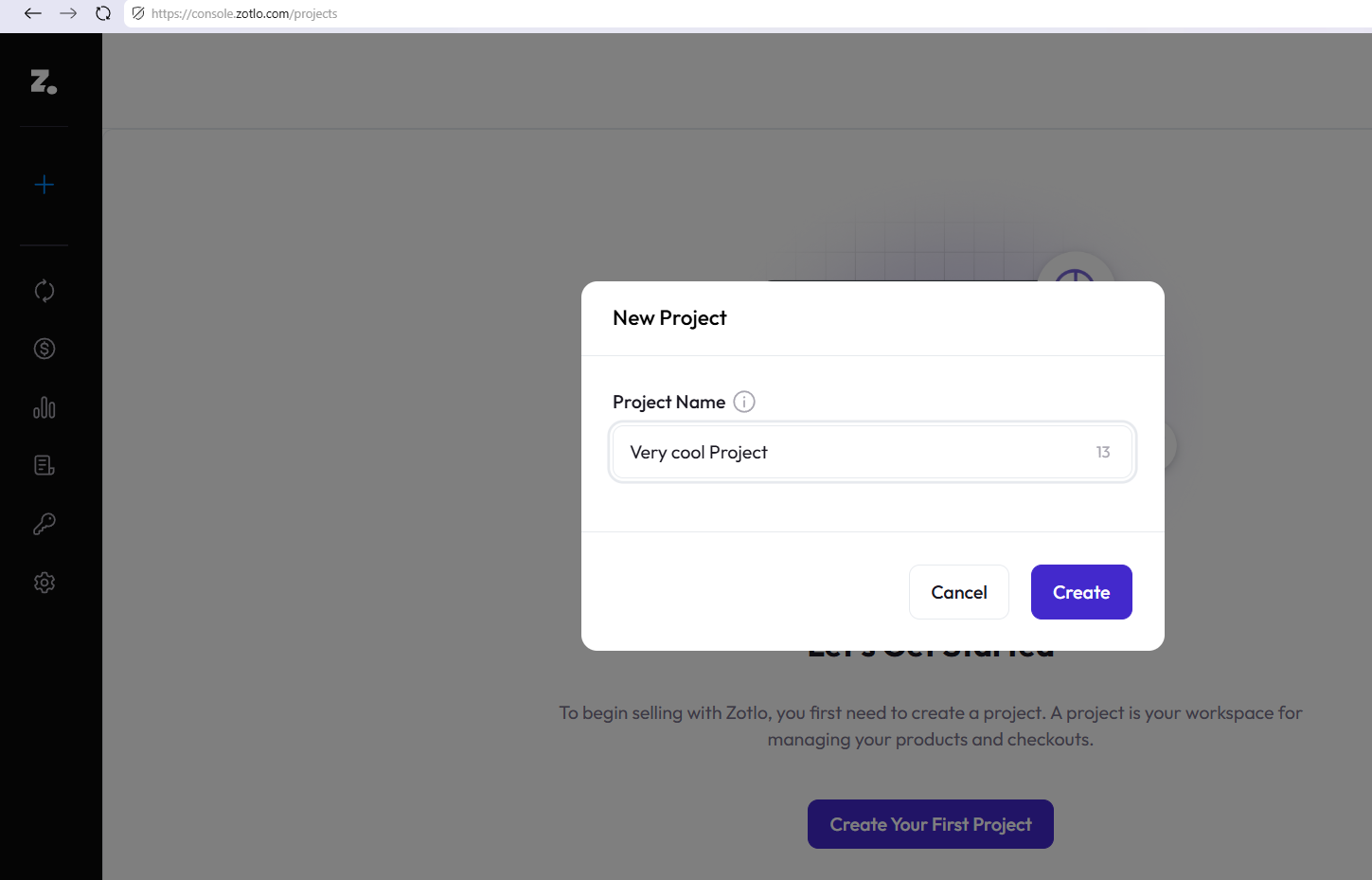
Creating your Project in Zotlo
- Reference: Zotlo docs.
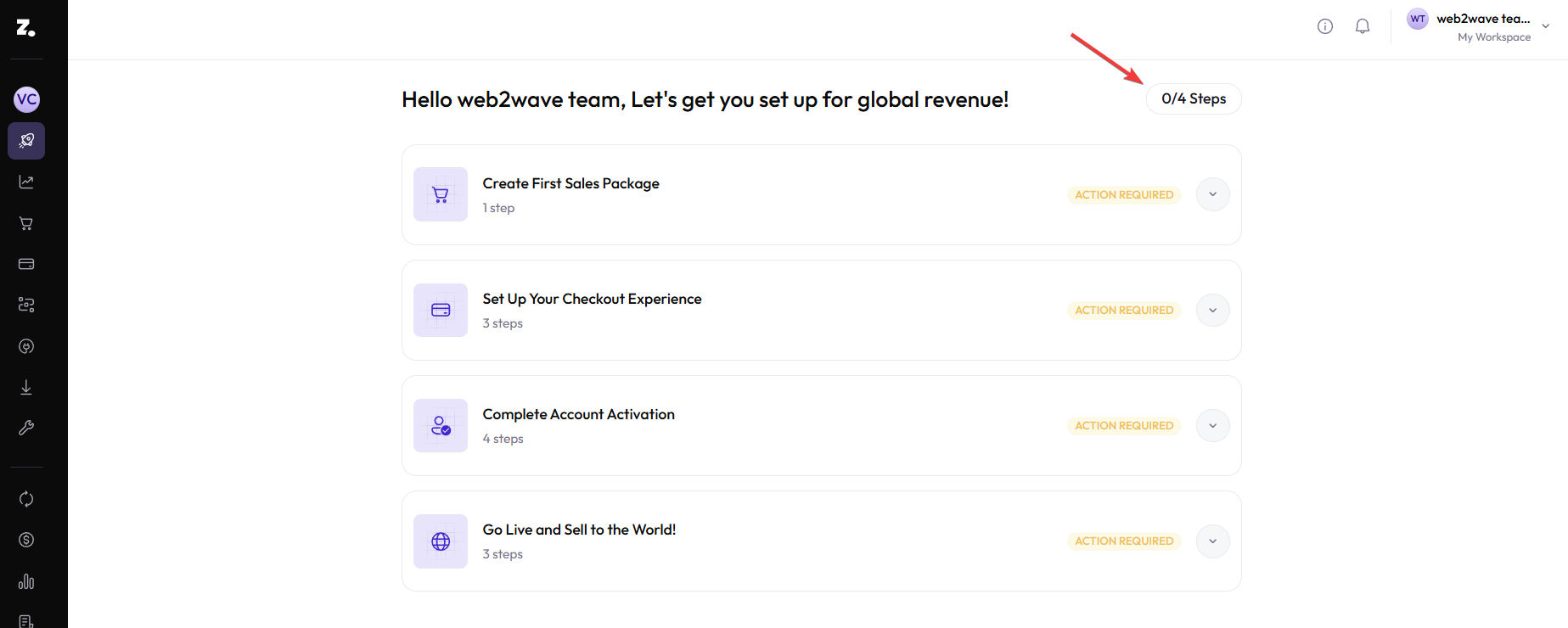
Four Steps required to set up in Zotlo dashboard
Integration guide
Part 1 – Get credentials in Zotlo
1: In Zotlo open Integrations → Developer Tools → Checkout SDK and copy the Checkout SDK keys (separate for Live and Sandbox).
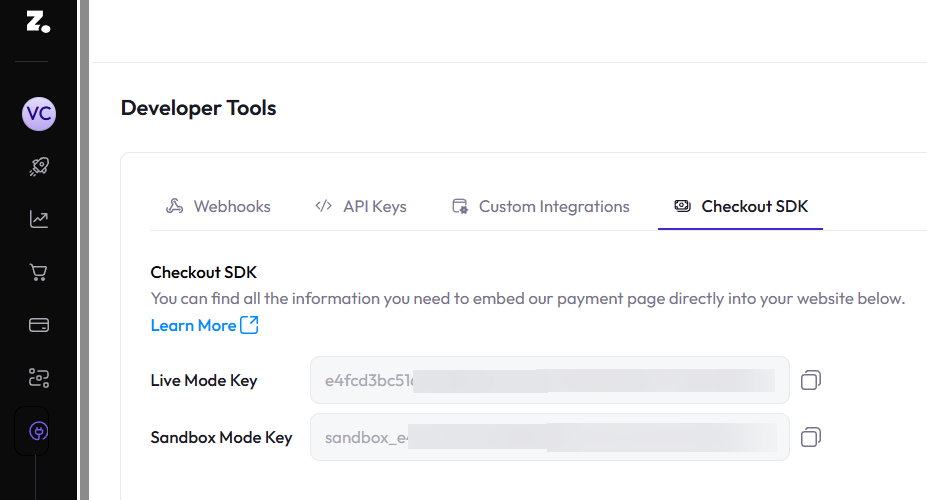
Checkout SDK keys
2: In Integrations → Developer Tools → API Keys copy:
- Access Key
- Access Secret
- App ID
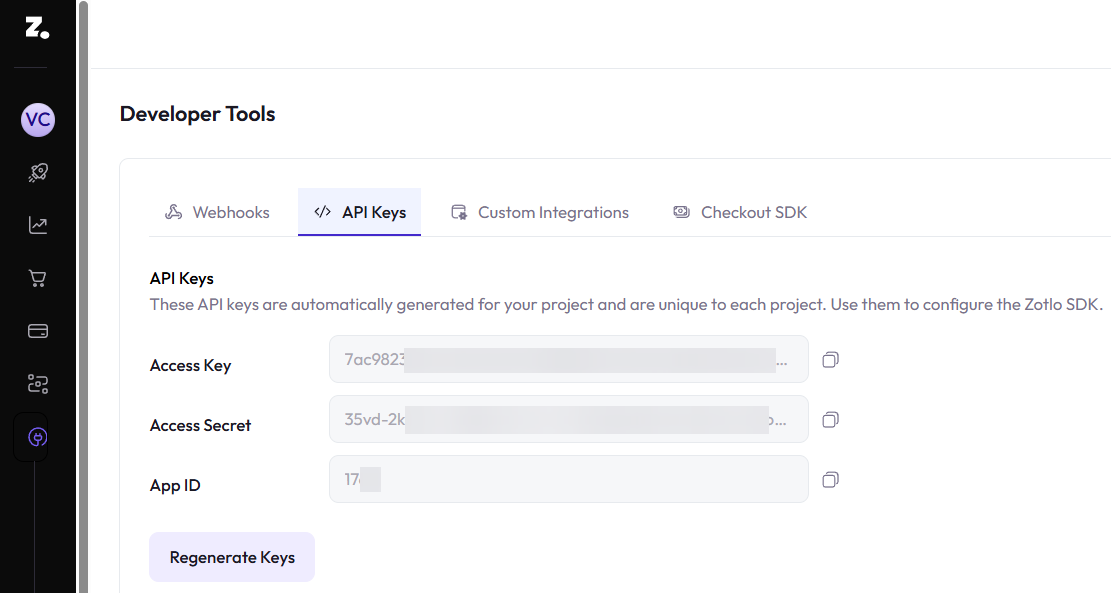
API Keys
3: In Integrations → Developer Tools → Webhooks paste the webhook URLs from web2wave (Part 3) into all four categories:
- Payments
- Failed Payments
- Subscription Status
- Refunds
Use the Live Mode URL for production and the Sandbox Mode URL for sandbox. The same endpoint handles every event type — web2wave routes by queue.type / queue.eventType.
Note: Zotlo does not sign webhooks. web2wave accepts deliveries only when they carry
web2wave_user_id(and optionallyweb2wave_project_id) from the checkout — i.e. payments that started on your paywall.
Part 2 – Create packages in Zotlo
4: In Zotlo open Catalog→ Sales Packages and create a package for each plan you sell (billing period, price, currency, trial if any).
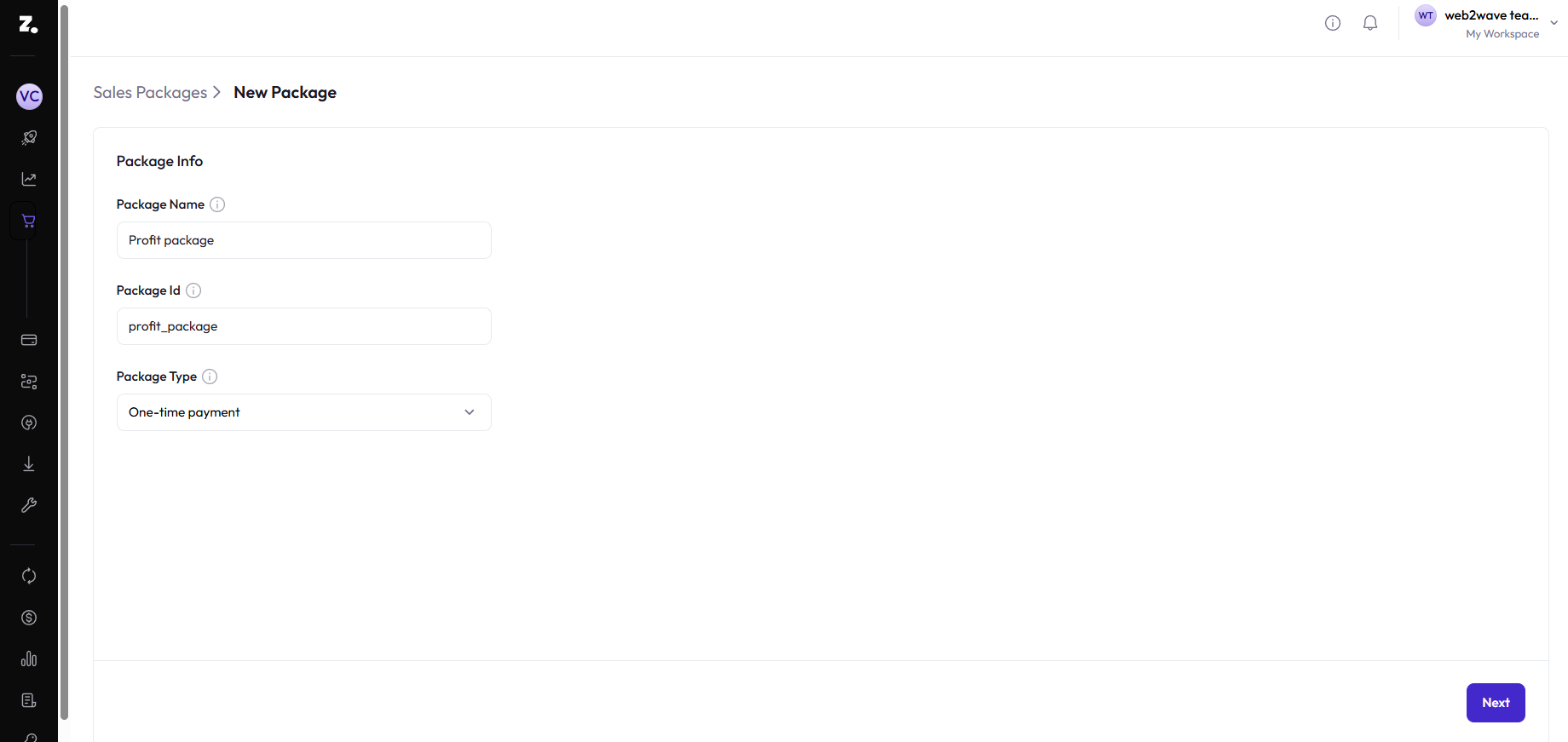
Creating a package in Zotlo dashboard
5: After Zotlo is connected (Part 3), import those packages into web2wave (Part 4). You can also copy each package's packageId and paste it as the price External code if you create a price by hand.
Part 3 – Connect Zotlo to web2wave
6: In web2wave open Projects → [your project] → Payments and enable Zotlo.
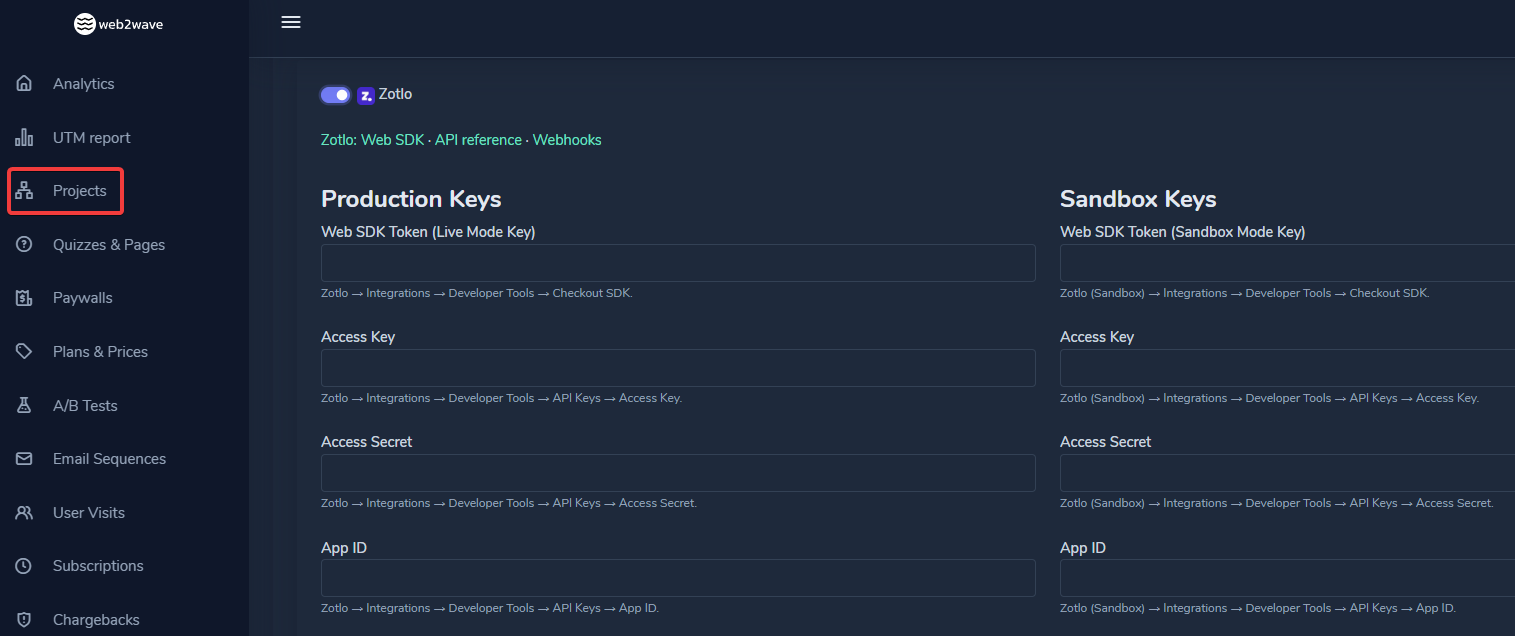
Keys to be entered from Zotlo dashboard
7: Fill in the credentials from Part 1:
| Field | Where in Zotlo |
|---|---|
| Web SDK Token | Developer Tools → Checkout SDK |
| Access Key | Developer Tools → API Keys |
| Access Secret | Developer Tools → API Keys |
| App ID | Developer Tools → API Keys |
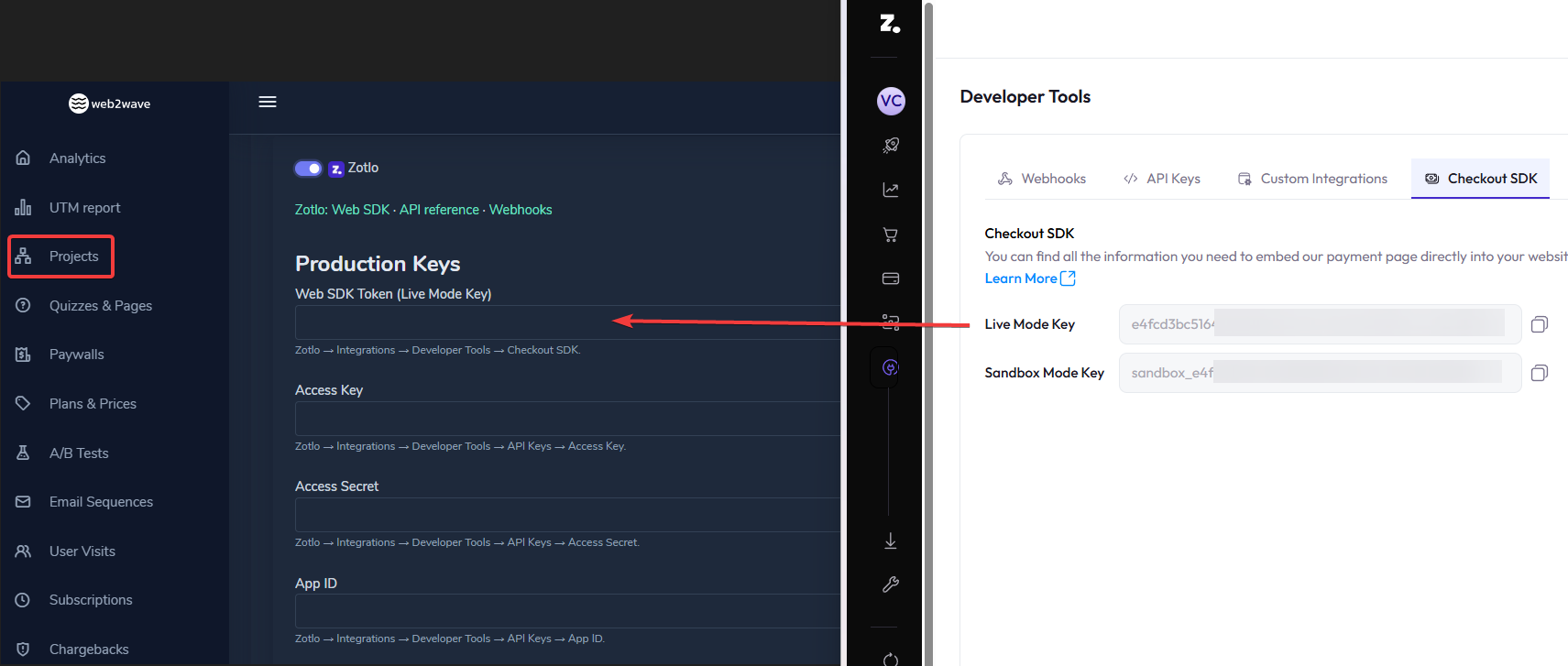
Adding Web SDK Token (Live Mode Key) by copying it from Zotlo, Developer Tools → Checkout SDK
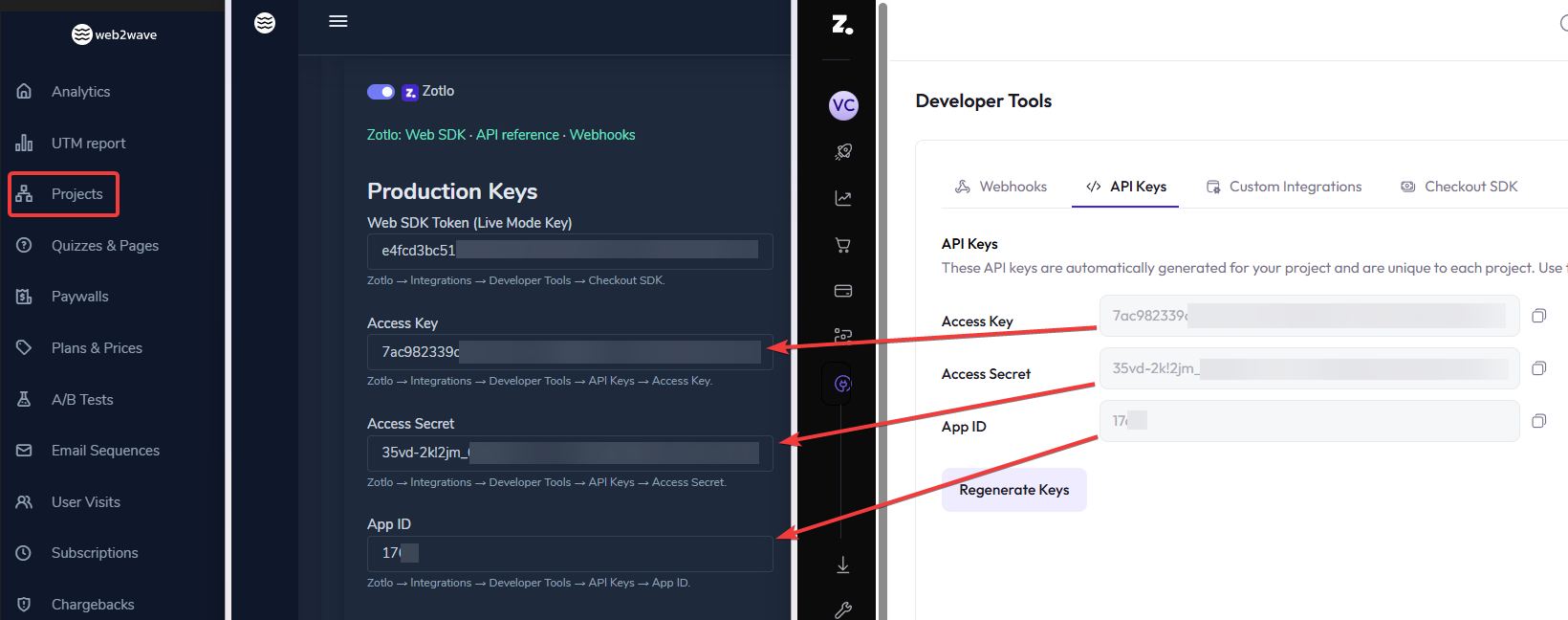
Adding API Keys in web2wave by copying it from Zotlo
Fill both Production Keys and Sandbox Keys columns if you test in sandbox.
8: Copy the webhook URLs shown in project settings:
- Live:
https://<your-project>.web2wave.com/zotlo/webhook?livemode=1 - Sandbox:
https://<your-project>.web2wave.com/zotlo/webhook?livemode=0
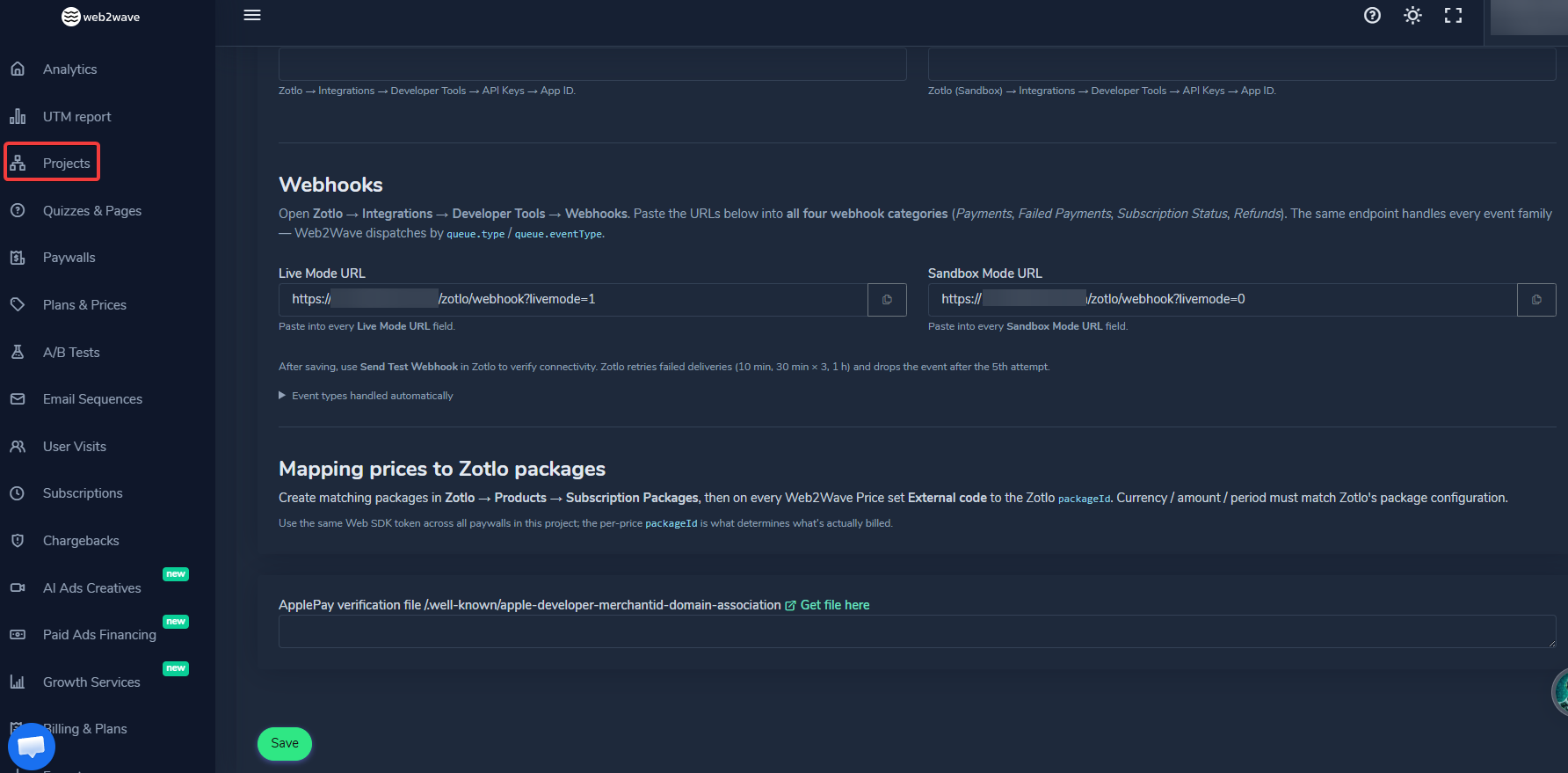
Projects → [your project] → Payments Zotlo, Webhooks section
Paste each URL into the matching Live Mode URL / Sandbox Mode URL fields in all four Zotlo webhook categories (Part 1, Step 3).
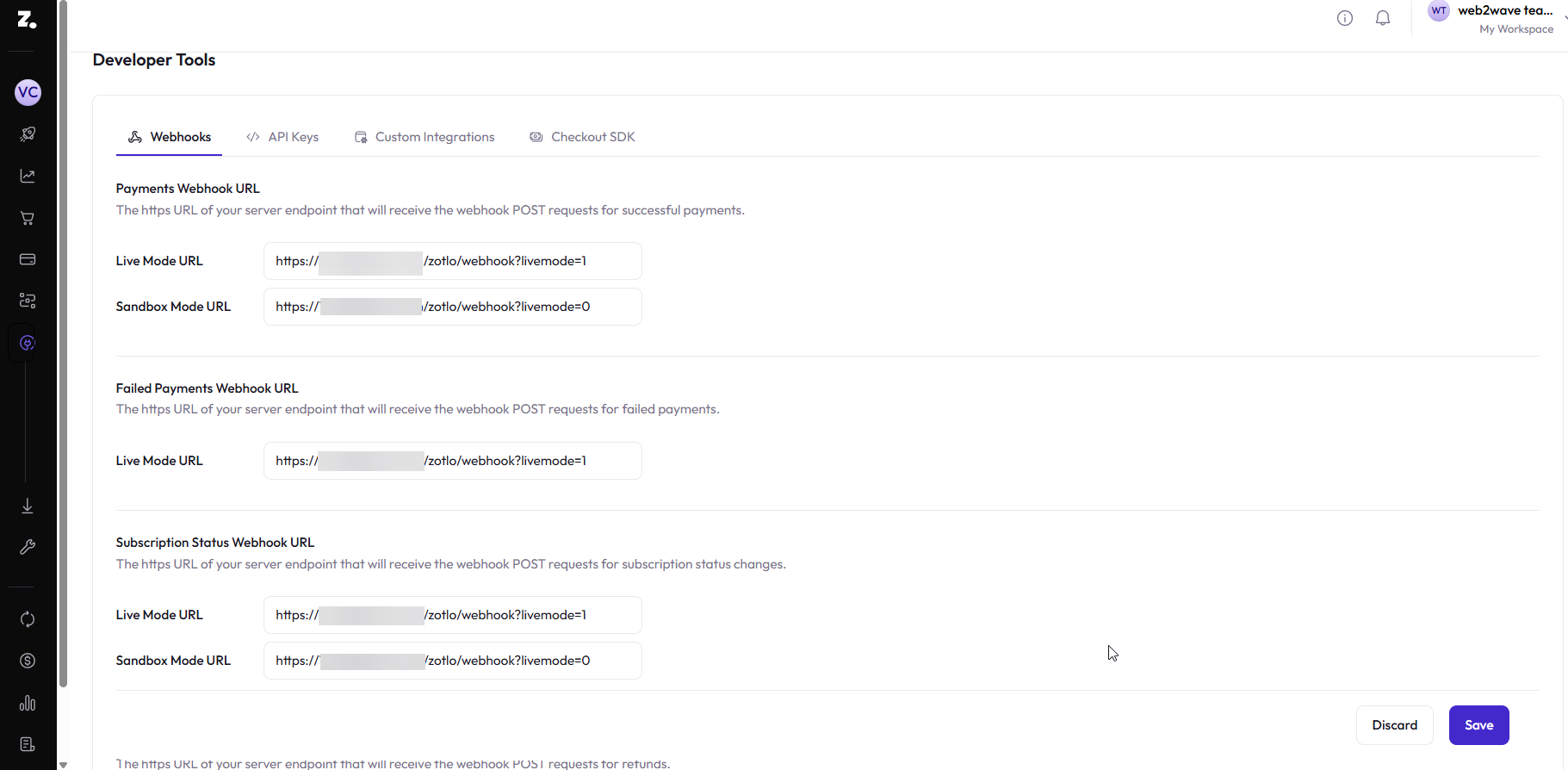
Add the same webhook URLs Live for Live, Sandbox for Sandbox from web2wave, save it and "Send Test Webhook" button will appear
9: Click Save, then use Send Test Webhook in Zotlo to confirm connectivity.
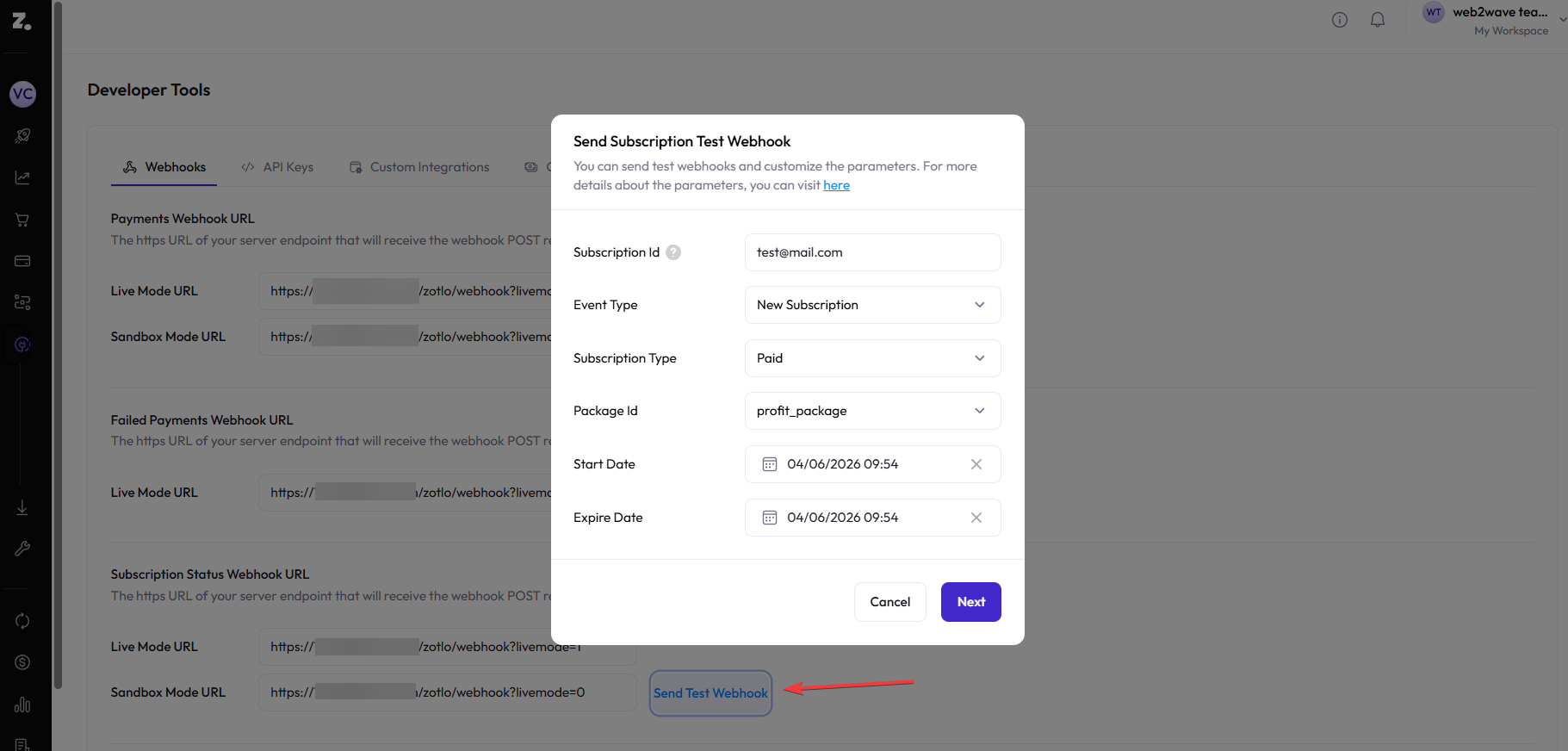
Sending a test webhook from Zotlo dashboard
Expected result:

If upon checking you will not see a Success message, please contact web2wave support team.
Part 4 – Map prices and configure the paywall
10: In web2wave go to Plans and Prices → Import Plans and Prices. Select your project, set Payment System to Zotlo, and click Start Import.
To create a price by hand instead, use Create new price:
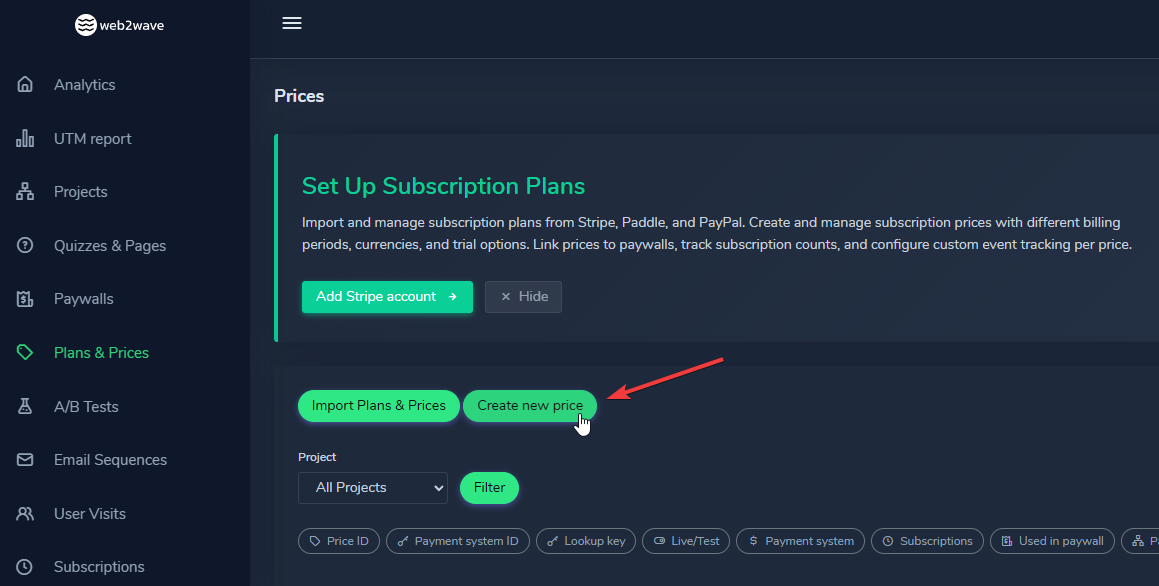
Creating new price in web2wave
For each price that should bill through Zotlo:
- Set Payment system context via the plan (live prices → production keys, sandbox prices → sandbox keys).
- Set External code to the Zotlo
packageIdfrom Part 2.
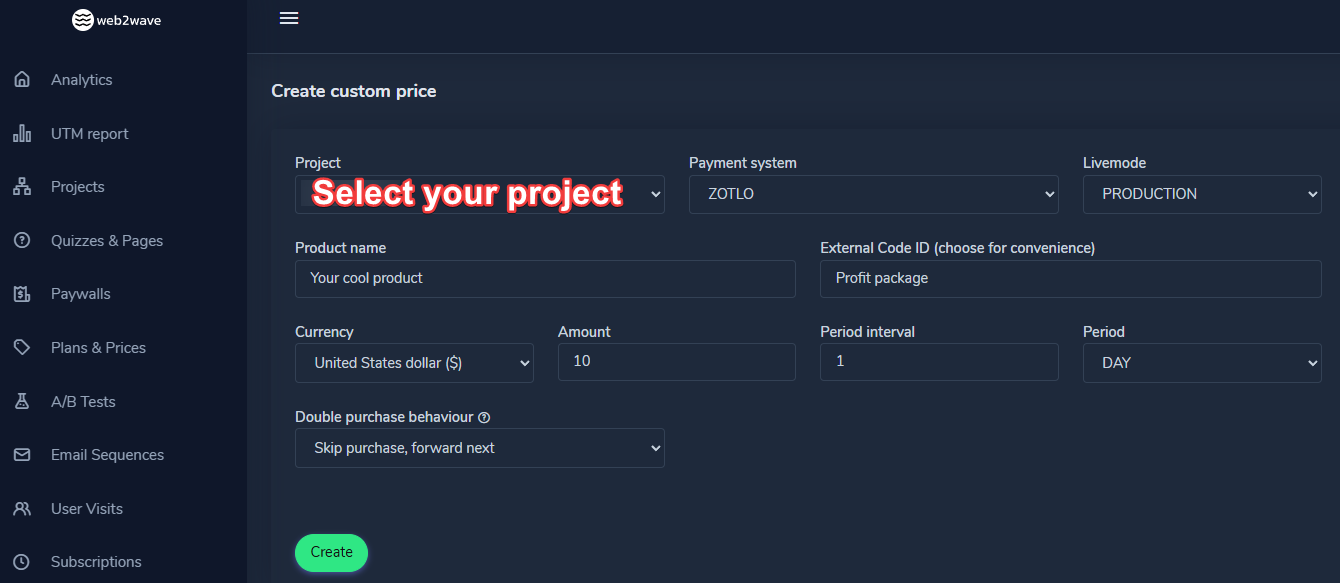
Creating a Live price in web2wave dashboard for Zotlo payment system
11: Open the paywall editor:
- Set Main payment system to Zotlo.
- Add your Zotlo-linked prices to the paywall.
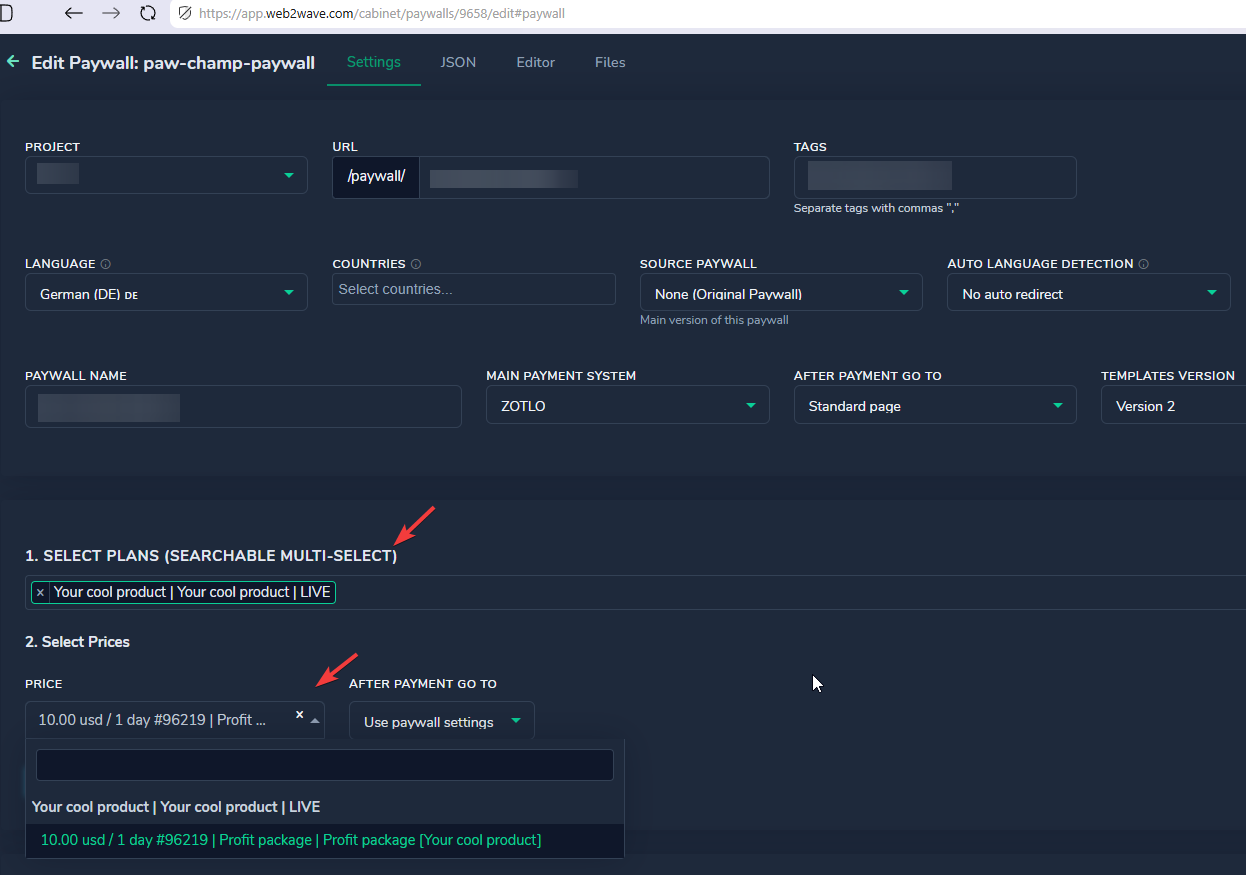
Selecting created prices in a paywall, Settings tab
- Add the Zotlo form block where the embedded checkout should appear.
The paywall must collect the buyer's email before the Zotlo form renders - web2wave passes it to Zotlo as subscriberId so returning customers can reuse saved cards.
Part 5 – Test purchase
12: Run a sandbox purchase and verify:
- The Zotlo checkout renders inline and reloads when the buyer switches prices.
- Webhooks appear under Project → Webhooks.
- A new subscription shows in the cabinet with the Zotlo transaction / subscription id.
Troubleshooting
Q: Checkout shows "Zotlo is not configured for this paywall."
- Resolution: Add the Web SDK Token for the environment that matches the selected price (
livemode).
Q: Checkout shows "Could not open Zotlo checkout" or the form stays empty.
- Resolution: Check that the price External code is set to a valid Zotlo
packageIdand that currency / amount / period match the Zotlo package.
Q: Payment succeeds in Zotlo but no subscription appears in web2wave.
- Resolution: Confirm webhooks are configured in all four Zotlo categories and point to the correct Live/Sandbox URL. Check Project → Webhooks for failed deliveries. Zotlo retries failed webhooks (10 min, 30 min × 3, 1 h) and drops the event after the 5th attempt.
Q: Need to refresh revenue for a subscription?
- Open the subscription in the cabinet and click Recalculate. web2wave pulls the latest transaction history from Zotlo via the API.