
Show paywall prices in the visitor's local currency: add extra currencies to a price, then enable Auto Currency Switching on the paywall.
Auto Currency Switching shows a visitor from Germany €19.99 where a visitor from the US sees $19.99 — using the amount you entered for EUR, not a live exchange-rate conversion.
Two things have to be in place:
- The price carries an amount for that currency — Plans & Prices → the price → Additional Currencies.
- The paywall has the Auto Currency Switching toggle enabled — Paywalls → edit the paywall → Settings.
If either one is missing, every visitor sees the price in its primary currency.
How the currency is chosen
- A visitor opens the paywall. web2wave determines their country from their IP address.
- The country is matched against web2wave's country-to-currency list. When a country is associated with more than one currency, the first currency listed for that country is used.
- That currency is applied only if the paywall can actually charge in it:
- Same price, extra currency — one of the prices attached to the paywall has an amount configured for that currency. With Stripe this is the presentment currency: the buyer stays on the same price and is charged in their local currency.
- Separate price — with Paddle, a different price attached to the paywall has that currency as its own primary currency. The paywall shows that price instead.
- If the country has no currency associated with it, or no attached price can be charged in that currency, the visitor stays on the primary currency.
Amounts are resolved once, when the paywall loads, and are baked into the page. There is no currency switcher for visitors — the paywall does not re-price itself after it has loaded.
Step 1 — Add currencies to the price
- Go to Plans & Prices and open the price you want to sell in more than one currency.
- Find the Additional Currencies section.
- Add a row: the currency, the amount charged in that currency, and optionally the countries the row applies to.
- Save.
Do this for every price the paywall offers, so the whole price list is available in the same set of currencies.
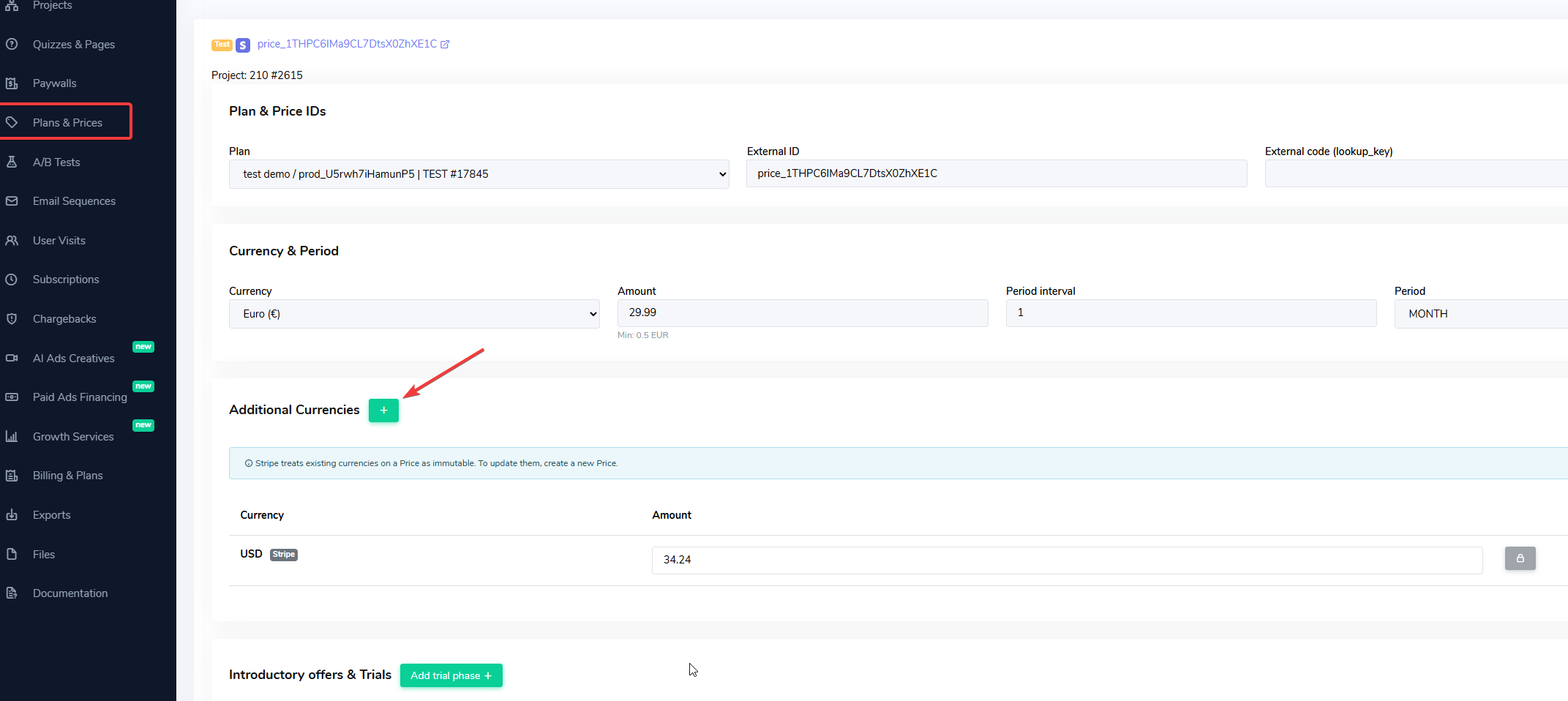
Adding required currencies in the price via web2wave Plans & Prices
Stripe prices
- One row per currency code. Stripe stores a single amount per currency on a price, so you cannot add two EUR rows with different amounts for, say, Germany and France.
- Amounts cannot be edited once the price exists in Stripe. Stripe prices are immutable. To change an amount in an additional currency, create a new price with the amounts you want and swap it on the paywall.
- Countries are stored in web2wave only. Filling in the countries field on a Stripe row does not change what Stripe charges — the amount for the currency is the same in every country.
Primer.io and Custom prices
These payment systems do allow several rows with the same currency scoped to different countries — for example one EUR amount for Germany and a different EUR amount for France. Leave the countries field empty on a row to use it everywhere the currency applies.
Step 2 — Turn on Auto Currency Switching
- Go to Paywalls and open the paywall for editing.
- Open the Settings tab.
- Enable Auto Currency Switching. The tooltip on the toggle explains that the paywall will show the local currency based on the visitor's country, and that it requires prices with multiple currencies.
- Save and publish the paywall.
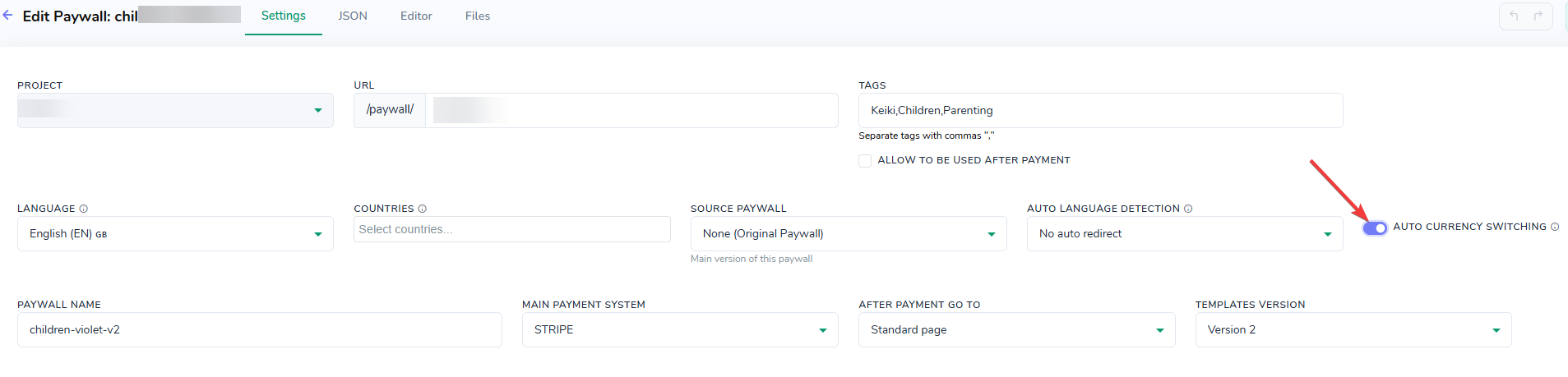
Enabling automatic currency switching
The toggle is per paywall. A price with additional currencies keeps showing its primary currency on any paywall where the toggle is off.
Forcing a currency or country on the paywall URL
Two parameters that you append to the paywall URL override the automatic detection. They work even when the Auto Currency Switching toggle is off, which makes them the quickest way to check an amount before you enable the feature for real traffic:
| Parameter | What it does | Example |
|---|---|---|
currency | Shows the paywall in this currency, skipping country detection | ?currency=eur |
w2w_country_code | Treats the visitor as if they were in this country | ?w2w_country_code=DE |
Add the first parameter after ? and any further ones after &, as with any link. Because these parameters bypass IP detection entirely, they are more reliable for testing than connecting through a VPN.
The usual limits still apply: a forced currency only appears if one of the attached prices can be charged in it.
When prices stay in the primary currency
| What you see | Why | Fix |
|---|---|---|
| Every visitor sees the primary currency | Auto Currency Switching is off for this paywall | Enable it in the paywall's Settings tab |
| Some prices switch, others don't | The additional currency was only added to some of the prices | Add the currency to every price on the paywall |
| A specific country never switches | That country has no currency associated with it | Nothing to configure per paywall — those visitors keep the primary currency |
| The country is detected but the currency never appears | No price attached to the paywall can be charged in that currency | Add the currency to the price, or attach a price whose primary currency matches |
| Germany and France show the same EUR amount | The prices are Stripe prices, which hold one amount per currency | Use country-based redirects to separate paywalls, or a payment system that supports country-scoped rows |
| A price shows a stale amount after editing | Stripe prices are immutable once created | Create a new price and swap it on the paywall |
Auto Currency Switching or country-based redirects?
Both localize pricing, but they solve different problems and can be used together:
- Auto Currency Switching — one paywall, one set of prices, shown in the visitor's currency. Copy, layout, offers, and payment system stay identical. Least maintenance.
- Country-based auto-redirect — a separate paywall per country, so you can change copy, images, offers, plan structure, and payment system, not just the currency. Use this when the amounts alone are not enough, or when you need country-specific pricing that a Stripe price cannot express.
Related
- Plans and prices — how prices, intro offers, and trials are configured.
- Auto-redirect: language and country — route visitors to separate localized paywalls.
- Stripe integration and managing paywalls — importing prices and paywall checkout blocks.
- Payment terms block — displaying the active currency and amounts in paywall text.